

TL;DR
- A bounced email is any message rejected by the recipient’s mail server and returned to the sender.
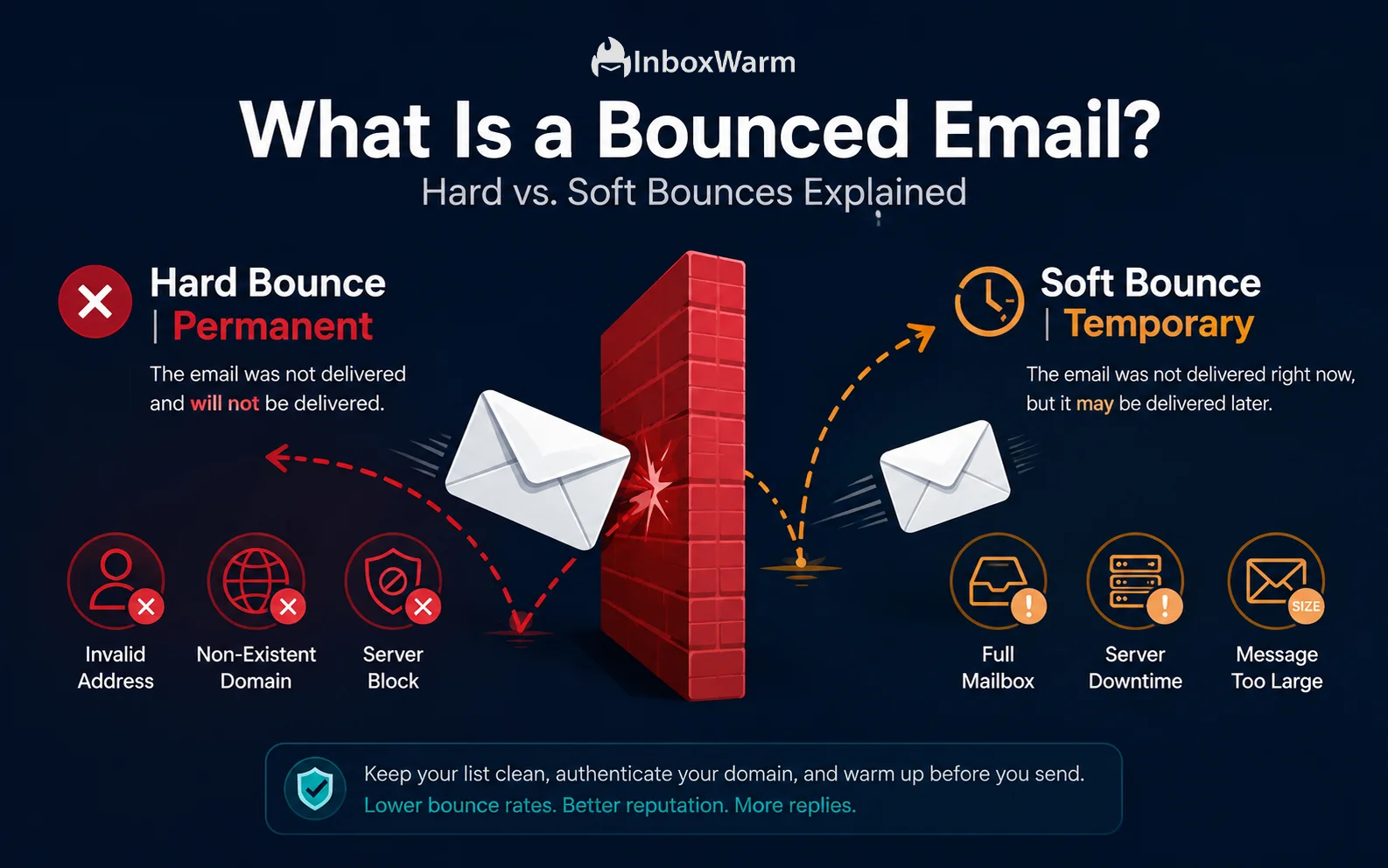
- Hard bounces are permanent: the address does not exist, the domain is invalid, or your server is blocked.
- Soft bounces are temporary: the mailbox is full, the receiving server is down, or the message is too large.
- A bounce rate above 2% triggers spam filters and damages your sender reputation at Gmail and Outlook.
- List validation, SPF/DKIM/DMARC authentication, and email warm-up are the three proven fixes.
- Use InboxWarm.ai to warm up new domains and keep bounce rates under 1% from day one.
A bounced email is an outgoing message that gets rejected by the recipient’s mail server and returned to the sender with an error code. Every bounce falls into one of two categories: hard bounces (permanent delivery failures) or soft bounces (temporary delivery failures). The distinction matters because it determines whether you should remove the address immediately, retry delivery, or investigate a deeper infrastructure problem.
According to Google’s 2024 bulk sender requirements, mailbox providers now treat domains that generate high bounce rates as spam sources, which triggers inbox filtering for all subsequent messages, including transactional and marketing emails. Industry benchmarks put the safe upper threshold at 2%: above that, ISPs begin throttling and filtering your entire sending domain.
For cold email agencies managing 20-plus mailboxes, SaaS founders running outbound sequences, and SDR teams at scale, even a single wave of hard bounces can cascade into a full sender reputation collapse. This guide breaks down every type of bounce, the SMTP error codes behind them, and the exact steps to bring your bounce rate back under control.
Table of Contents
What Is a Bounced Email and How Does the Delivery Failure Work?
A bounced email is the automated failure notification generated when a sending mail server attempts delivery, but the receiving server refuses it. The refusal triggers a Non-Delivery Report (NDR) or Delivery Status Notification (DSN), sent back to the originating address with a three-digit SMTP error code explaining why delivery failed.
The exchange happens during the SMTP handshake: your outgoing mail server contacts the recipient’s MX record, initiates a connection, and attempts to transfer the message. If the receiving server returns a 4xx or 5xx response code, the message is bounced. The number prefix determines whether the bounce is soft (4xx) or hard (5xx).
Understanding bounce codes is not just troubleshooting: it directly informs which list management action you take next. Misclassifying a hard bounce as a soft one and continuing to send to that address is one of the fastest ways to accumulate spam complaints and trigger domain-level filtering.
What Are the Two Main SMTP Response Code Ranges for Bounces?
- 5xx codes (e.g., 550, 551, 553): Permanent failures. The receiving server will never accept this message at this address. These are hard bounces. Remove the address from your list immediately.
- 4xx codes (e.g., 421, 452): Temporary failures. The receiving server encountered a transient issue. Your sending server should retry automatically over 24 to 72 hours. These are soft bounces.
What Is a Hard Bounce and What Causes It?
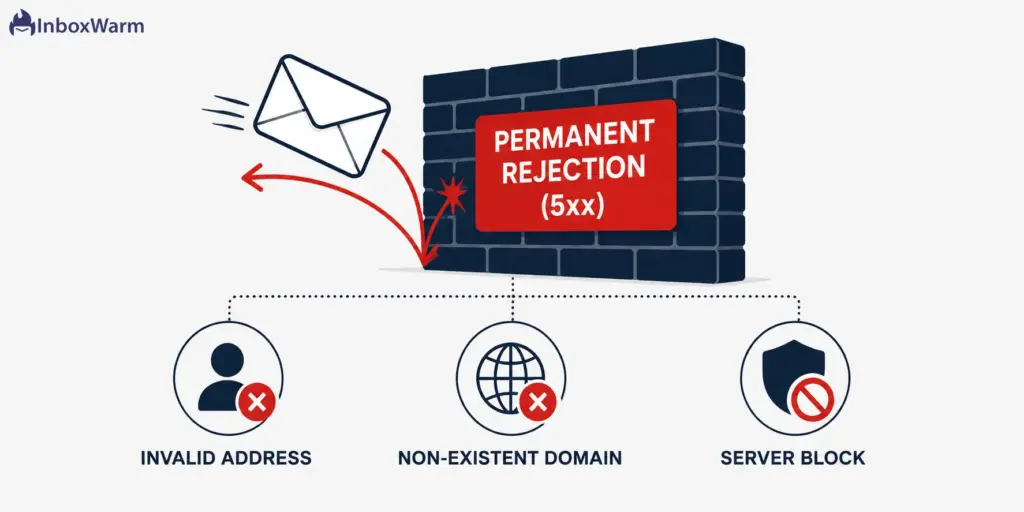
A hard bounce is a permanent email delivery failure. The receiving server has definitively refused the message in a way that signals the delivery will never succeed, regardless of how many times you retry. Hard bounces generate 5xx SMTP error codes and require immediate action on the sender’s side.
Hard bounces carry the highest reputational penalty of any bounce type. Google Postmaster Tools will begin flagging your domain’s reputation as ‘Low’ or ‘Bad’ once your bounce rate climbs above the 2% threshold, which triggers increasingly aggressive spam filtering across all sends from that domain, not just the ones generating bounces.
What Are the Most Common Causes of Hard Bounces?
- Invalid or non-existent email address: The address was never created, has been deleted, or contains a typo (e.g., name@gmial.com). The receiving server returns a 550 error: user unknown.
- Non-existent or expired domain: The domain in the recipient’s address (e.g., @company.com) no longer exists, has expired, or has no MX record configured. Verify domain status using the WHOIS Checker before sending.
- Permanent server-level block: The receiving mail server has added your IP or domain to a block list and will reject all future messages. Check your standing using the ESP Checker to identify and address blacklisting before relaunching.
- Malformed email address: Addresses missing the @ symbol, containing invalid characters, or structured incorrectly (e.g., double dots, spaces) trigger a 553 error and hard bounce immediately.
- Role-based address bounces: Addresses like info@, noreply@, or postmaster@ are often configured to reject inbound messages from unknown senders, particularly at smaller domains without catch-all routing.
Best practice: remove every hard-bounced address from your active sending list immediately after the first occurrence. Continuing to send to a known hard bounce address signals to ISPs that you are operating a low-quality list, which is a strong spam indicator that compounds reputation damage across your entire sending domain.
What Is a Soft Bounce and What Causes It?
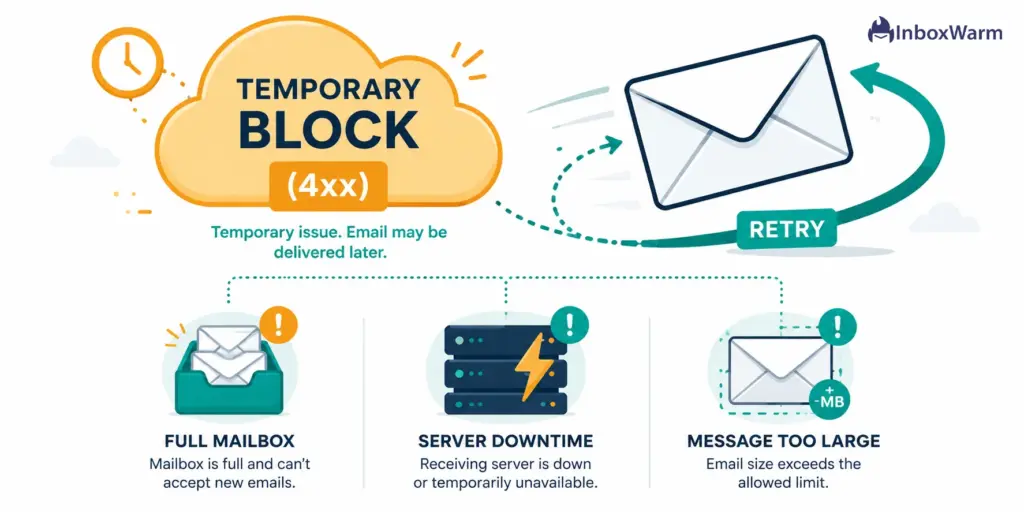
A soft bounce is a temporary email delivery failure. The recipient’s address exists, and the domain is valid, but something is preventing delivery right now. Soft bounces generate 4xx SMTP codes, and your sending server should retry automatically. Most email service providers retry for 24 to 72 hours before converting the soft bounce to a suppression event.
Soft bounces are generally less damaging to sender reputation than hard bounces, but high volumes of soft bounces from the same domain can still trigger ISP throttling. Repeated soft bounces from the same address over multiple campaigns often indicate an abandoned inbox, which should eventually be treated the same as a hard bounce.
What Are the Most Common Causes of Soft Bounces?
- Recipient’s mailbox is full (452): The inbox has exceeded its storage quota and cannot accept new messages. The retry will succeed once the user clears space, typically within 24 to 48 hours.
- Receiving mail server temporarily unavailable (421): Server outages, maintenance windows, or heavy load on the receiving side cause temporary connection refusals. Retries usually succeed after the server recovers.
- Message too large (552): Your email exceeds the receiving server’s size limit. This most often occurs with heavy attachments or embedded images. Reduce attachment size or link to hosted assets instead.
- Greylisting: Some receiving servers temporarily reject messages from first-time senders and request a retry. A properly configured SMTP server handles this automatically. A warmed domain with established sending history is less likely to be greylisted.
- Auto-reply and out-of-office configurations: Certain auto-reply setups generate soft bounce notifications, though the underlying message is often still delivered. Monitor these at the campaign level rather than at the individual address level.
If the same address soft-bounces three or more times consecutively across separate sending days, suppress it. Repeated soft bounces are a reliable signal that the inbox is abandoned and will generate increasingly worse engagement signals if left in your active list.
How Do Hard Bounces and Soft Bounces Compare Side by Side?
The table below summarizes the key differences between hard and soft bounces, the SMTP codes involved, and the recommended action for each:
| Factor | Hard Bounce | Soft Bounce |
|---|---|---|
| Failure type | Permanent | Temporary |
| SMTP code range | 5xx (e.g., 550, 553) | 4xx (e.g., 421, 452) |
| Root cause | Invalid address, bad domain, server block | Full mailbox, server down, oversized message |
| Sender reputation impact | High: damages domain reputation immediately | Low to moderate: manageable at low volume |
| Recommended action | Remove from list after first bounce | Retry; suppress after 3+ consecutive bounces |
| Retry policy | Never retry | Auto-retry for 24 to 72 hours |
How Do Bounced Emails Affect Your Sender Reputation and Inbox Placement?
Sender reputation is the score that ISPs like Gmail, Outlook, and Yahoo assign to your sending domain and IP address. It determines whether your emails land in the primary inbox, the promotions tab, spam, or get blocked entirely. Bounced emails, particularly hard bounces, are one of the most direct inputs into that score.
The mechanism works like this: every hard bounce signals to an ISP that you sent to an address that does not exist, which is a behavior pattern strongly associated with purchased or scraped lists.
When that pattern appears consistently, ISPs assume you are a low-quality sender and begin applying aggressive filtering to your entire domain. This is the core of what Google’s Postmaster Tools spam rate monitoring is designed to detect and act on.
The 2024 Google and Yahoo sender requirement updates formalized this: senders generating a spam rate above 0.3% in Postmaster Tools will face active deliverability enforcement.
Bounce rate is one of the primary upstream drivers of spam rate. The full context is covered in the InboxWarm guide: Google & Yahoo Sender Requirements: The Complete Compliance Checklist.
What Bounce Rate Thresholds Should Cold Email Senders Watch?
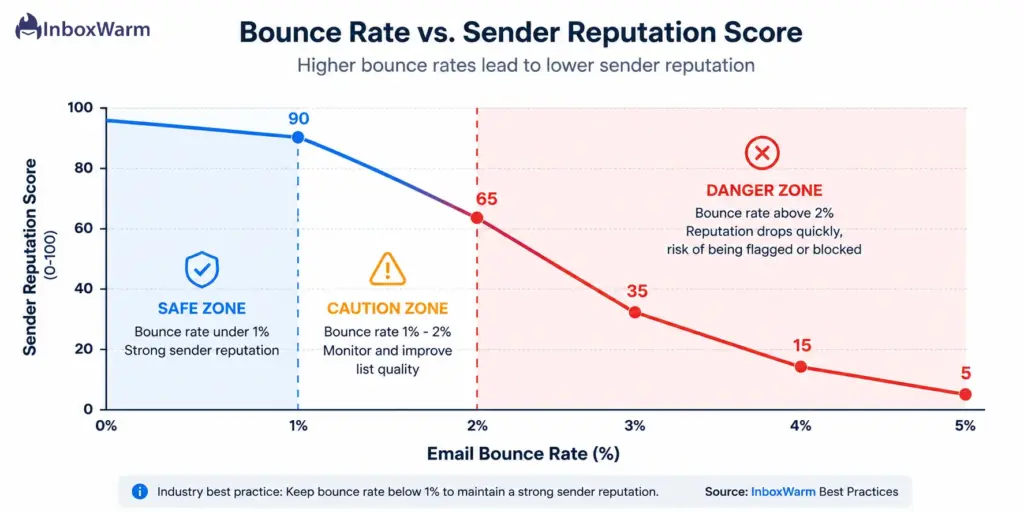
- Below 1%: Healthy. The industry gold standard for high-volume cold outreach. Most ESPs and ISPs will not take action at this level.
- 1% to 2%: Caution zone. Review your list hygiene practices and run verification before scaling. Do not increase sending volume while in this range.
- Above 2%: Danger zone. Google Postmaster Tools will flag this range. Many ESPs will pause or throttle your sending account. Pause, clean, and warm up before relaunching.
- Above 5%: Critical. Expect active IP blacklisting, domain-level blocks, and potential account suspension from your ESP. Full infrastructure remediation is required.
One nuance worth highlighting: even a single hard bounce from a spam trap (an email address maintained by anti-spam organizations specifically to catch low-quality senders) can trigger a blacklisting event regardless of your overall bounce rate percentage. Spam trap hits are why list sourcing quality matters as much as the bounce rate number itself.
Is Your Domain at Risk from High Bounce Rates?
Check your domain health before your next campaign with InboxWarm.ai’s free tools.
How Can You Reduce Email Bounce Rates and Protect Your Sender Reputation?
Reducing bounce rates is not a one-time fix. It is an ongoing deliverability discipline that combines list hygiene, authentication, domain warm-up, and active monitoring.
The following steps cover the highest-impact actions for cold email senders and high-volume outreach teams:
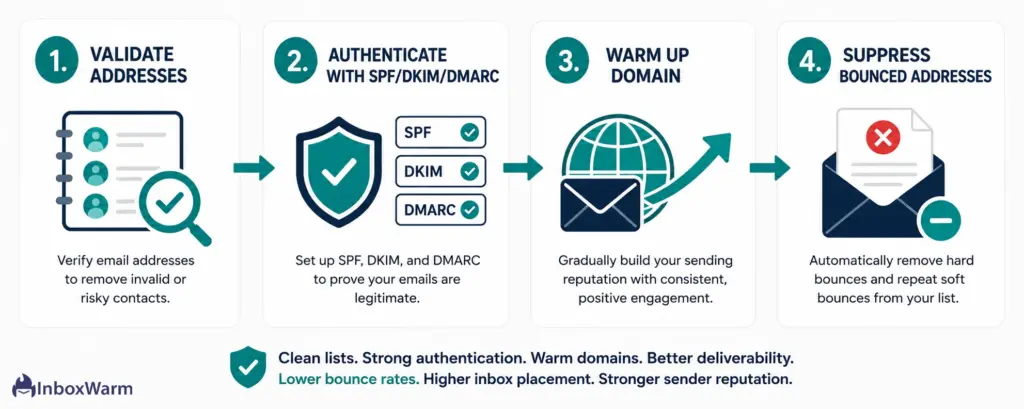
Step 1: Validate Email Addresses Before Every Campaign Send
Use an email verification tool to validate addresses before importing them into your sending platform. Verification tools check MX records, SMTP responses, and known disposable address patterns to identify invalid addresses before they generate hard bounces. Run verification on any list older than 90 days: email address churn averages 22.5% annually, which means one in five addresses on a year-old list may already be invalid.
Step 2: Configure SPF, DKIM, and DMARC on Every Sending Domain
Proper email authentication tells receiving servers that your messages are legitimate and not spoofed. Without all three records configured correctly, your messages are more likely to be rejected or filtered before they ever reach the inbox. Use InboxWarm’s free tools to verify each record: SPF Checker, DKIM Checker, and DMARC Checker. If any record is missing, generate the correct values using the SPF Generator and DMARC Generator. The full setup process is covered in: SPF, DKIM, and DMARC Explained: How Email Authentication Actually Works.
Step 3: Warm Up New Domains and Mailboxes Before Sending Live Sequences
Sending cold emails from a brand-new domain without warming it up is one of the most preventable causes of soft bounce spikes. ISPs assign new senders a neutral or low reputation by default, and sending high volumes before establishing history triggers both greylisting-based soft bounces and outright rejections from servers that block unknown senders.
InboxWarm.ai automates domain warm-up by simulating natural sending patterns, gradually scaling volume, and maintaining positive engagement signals (opens, replies, folder moves) that build domain reputation before your first live campaign.
Most agencies report measurable inbox placement improvements within 14 to 21 days. Platforms supported include Gmail warm-up, Outlook warm-up, SMTP warm-up, SendGrid warm-up, and Amazon SES warm-up.
Step 4: Suppress Bounced Addresses and Maintain a Clean Suppression List
Maintain a dedicated suppression list of all hard-bounced addresses and never send to them again. For soft bounces, apply a three-strike rule: after three consecutive soft bounces from the same address across separate sends, move it to suppression.
Step 5: Monitor Bounce Rates Per Campaign, Not Just in Aggregate
Review bounce reports after every send. If a specific domain (e.g., @bigcorp.com) is generating an unusual number of hard bounces, it may indicate a server-level block that requires targeted investigation rather than blanket list removal. Patterns by recipient domain often point to infrastructure issues, email error codes, or firewall configurations that standard list hygiene alone cannot resolve.
What Do the Most Common Email Bounce Error Codes Mean?
Reading bounce error codes gives you the root cause of a delivery failure, not just the symptom. Here are the most common SMTP bounce codes and what each one tells you:
| Code | Bounce Type | Category | What It Means |
|---|---|---|---|
| 550 | Hard Bounce | 5xx Permanent | Mailbox unavailable: address does not exist or has been disabled |
| 551 | Hard Bounce | 5xx Permanent | User not local: the server does not relay for this address |
| 552 | Hard / Soft | 5xx / 4xx | Message too large or mailbox over quota: reduce attachment size or retry later |
| 553 | Hard Bounce | 5xx Permanent | Mailbox name invalid: address is malformed or unacceptable to the server |
| 421 | Soft Bounce | 4xx Temporary | Service temporarily unavailable: receiving server overloaded or in maintenance |
| 450 | Soft Bounce | 4xx Temporary | Mailbox temporarily unavailable: transient issue, retry recommended |
| 451 | Soft Bounce | 4xx Temporary | Processing error on the receiving side: retry after a short interval |
| 452 | Soft Bounce | 4xx Temporary | Insufficient server storage: receiving mail server is temporarily out of space |
For a complete reference covering all SMTP error codes, bounce categories, and resolution steps, see: Email Error Codes & Delivery Failures: The Complete Fix Reference.
How Does Email Warm-Up Prevent Bounced Emails Before They Happen?
Email warm-up addresses one of the most preventable root causes of bounce rate spikes: sending from a domain or mailbox that has not established a sending reputation. When you send from a new or cold domain, receiving servers treat your messages with heightened suspicion.
Aggressive spam filters soft-bounce messages from unknown senders via greylisting, and some will hard-bounce them if your IP is on a shared blacklist or your domain has no verifiable sending history.
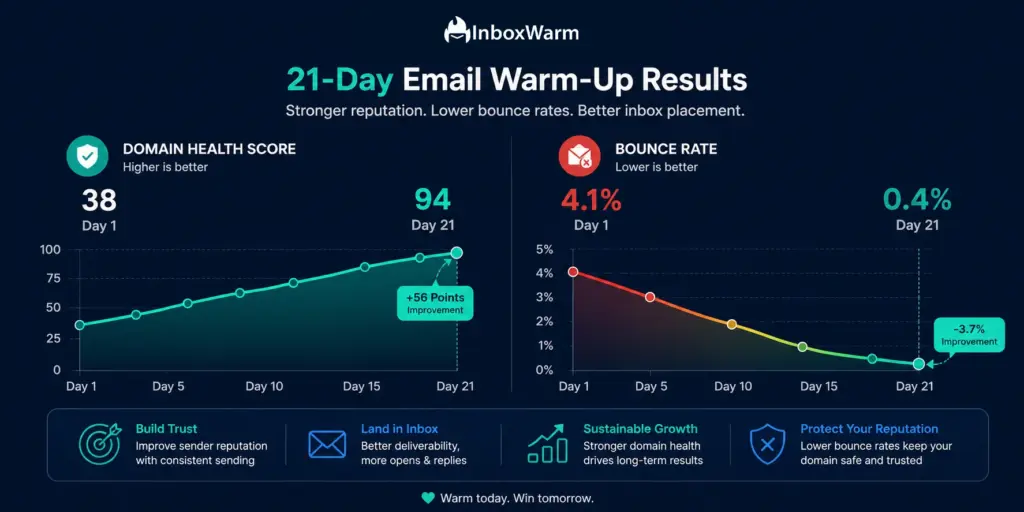
The warm-up process builds the domain reputation that makes receiving servers trust your messages before you begin live sequences. InboxWarm.ai’s AI-powered warm-up engine sends realistic emails between real inboxes in its private seed network, simulates organic engagement (opens, replies, folder movements), and gradually scales volume to match the sending behavior of an established, trusted sender. This is not bot traffic: it is real inbox interaction that inbox providers recognize as legitimate human engagement.
Agencies managing multiple client mailboxes see the clearest impact: instead of onboarding a new client domain and immediately encountering soft bounce spikes that tank early campaign metrics, a structured 14 to 21-day warm-up establishes the baseline that keeps bounce rates under 1% from the first live send. For agencies evaluating their options, see: Automated Email Warmup: A Complete Guide for Agencies.
Start Warming Up Your Domain Today
InboxWarm builds your sender reputation automatically so your emails hit the inbox, not the spam folder.
Frequently Asked Questions
2. How Does A High Bounce Rate Affect Your Sender Reputation?
ISPs use bounce rate as a key spam signal. A rate above 2% signals low list quality to Gmail, Outlook, and Yahoo, triggering aggressive spam filtering. Sustained high bounce rates can result in IP blacklisting, account suspension by your ESP, and domain-level blocks.
3. Should You Remove Soft Bounces From Your Email List Immediately?
Not immediately. Allow your sending platform to retry the address over 24 to 72 hours. If the same address soft-bounces three or more times in a row across separate sends, suppress it. Repeated soft bounces typically indicate abandoned inboxes, which will generate hard bounces eventually and worsen your email spam score over time.
4. What SMTP Error Code Indicates A Hard Bounce?
Hard bounces generate 5xx SMTP error codes. The most common are 550 (mailbox not found or disabled), 551 (user not local), 553 (invalid address), and 554 (message rejected for policy reasons). For a full breakdown of what each code means and how to fix it, see: Email Error Codes & Delivery Failures: The Complete Fix Reference.
5. Can Email Warm-Up Actually Reduce Bounce Rates?
Yes. Warm-up prevents the reputation-related soft bounces and greylisting rejections that occur when sending from a new or cold domain. By building domain reputation before live sends, warm-up reduces the likelihood that receiving servers reject your messages due to unknown sender status or low trust scores. InboxWarm.ai automates the entire process across Gmail, Outlook, SMTP, SendGrid, and Amazon SES.
6. What Causes A 550 Email Bounce Error?
A 550 error means the recipient's mail server refused delivery because the mailbox does not exist, has been disabled, or the server has a policy rejecting your message. It is the most common hard bounce code. Remove the address immediately and check if the pattern is domain-wide, which would indicate a server-level block.
7. How Do You Check If Your Domain Is Blacklisted After A Bounce Spike?
Use the ESP Checker and WHOIS Checker to review your domain's current standing across major providers. You can also check major blacklist databases, such as Spamhaus and MXToolbox, directly. If listed, submit a delisting request and start a structured warm-up cycle with InboxWarm.ai to rebuild reputation before your next campaign.
Bottom Line
Bounced emails are not just metrics to track: they are direct feedback from the email delivery infrastructure about the health of your sending operation. Hard bounces tell you your list has quality problems. Soft bounces tell you your sending volume, timing, or domain reputation is creating friction.
Left unaddressed, both types compound into sender reputation damage that takes weeks or months to recover from, as covered in the Email Deliverability in 2026.
The most effective approach combines three practices: validate your list proactively using email verification before every major campaign push, configure SPF, DKIM, and DMARC authentication on every sending domain, and warm up new mailboxes before sending live sequences.
Agencies and SDR teams that treat warm-up as a non-negotiable onboarding step consistently maintain bounce rates under 0.5%, which keeps them firmly in the inbox across all major providers.
If your bounce rates have already started climbing, do not scale first and fix later. Pause the affected mailboxes, clean the relevant list segments, and start a structured warm-up cycle with InboxWarm.ai before relaunching.