
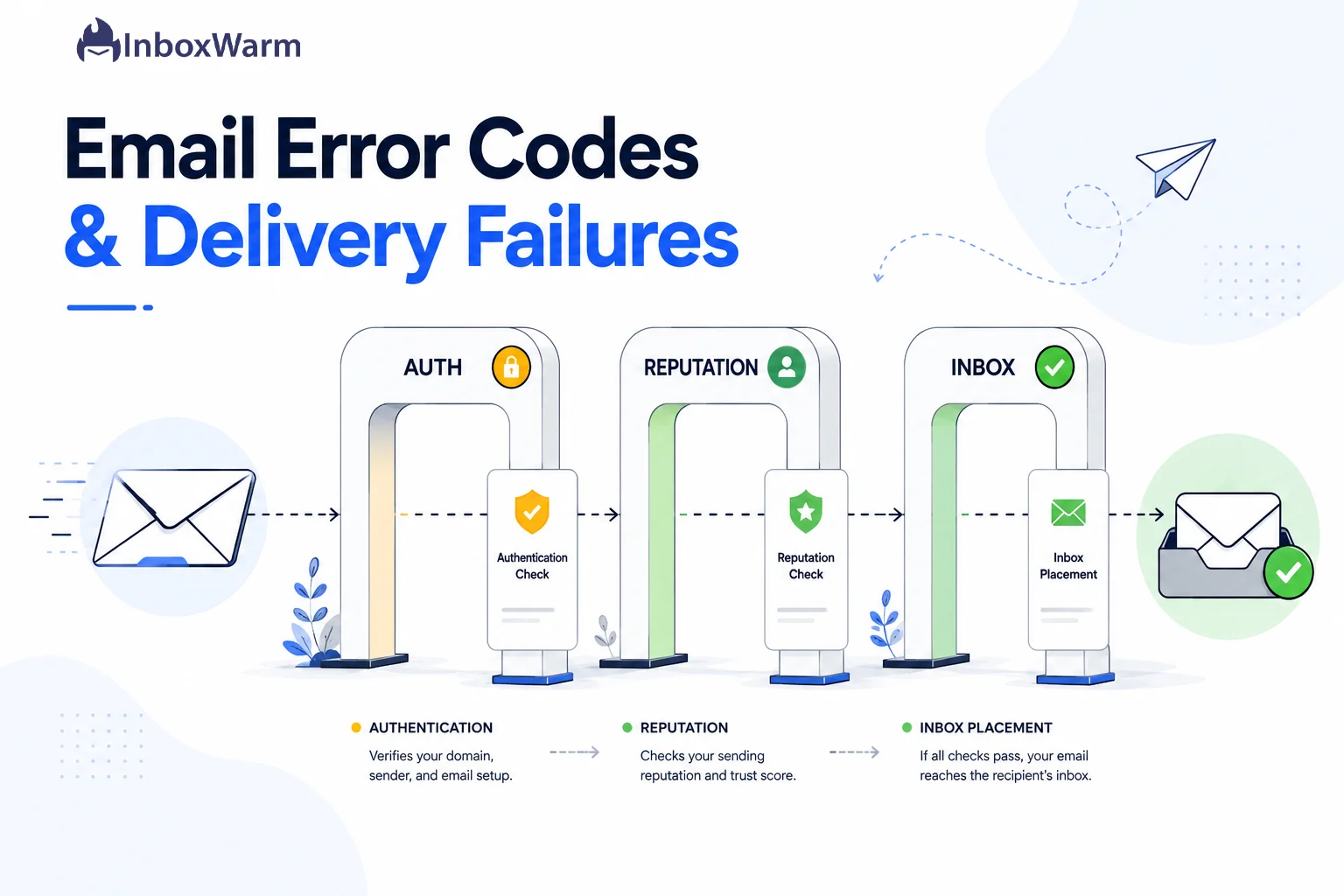

TL;DR
Email error codes are the numeric replies a receiving mail server returns when it cannot deliver your message. A 4xx code is a temporary soft bounce that retries on its own. A 5xx code is a permanent hard bounce you must fix. Read the enhanced status code and the text after it to find the real cause, then fix the source before you resend.
- 4xx errors (421, 450, 451, 452) are temporary. Let your server retry. Do not panic.
- 5xx errors (550, 552, 553, 554) are permanent. Fix the cause, then remove or correct the address.
- Most hard bounces trace back to four roots: bad addresses, failed authentication, poor sender reputation, or a blocklist hit.
- 550 5.7.1 and 550 5.7.26 are policy and DMARC rejections. They are fixed in your DNS, not by retrying.
You sent the email. Minutes later a delivery failure notice lands in your inbox with a three-digit number and a wall of cryptic text. If you run cold campaigns, manage client domains, or own deliverability for a growing product, that notice is not just annoying. It is revenue leaking out of your pipeline one bounce at a time.
Email error codes feel like noise, but they are precise. Every code tells you whether the failure is temporary or permanent, which part of delivery broke, and what to change. Reading them wrong is expensive. Retrying a permanent rejection drags down your sender reputation, the trust score mailbox providers assign to your domain and IP, and a pattern of ignored soft bounces can harden into a full block.
In this guide, you will learn how to read any SMTP error code, the difference between a hard bounce and a soft bounce, and the exact fix for the codes that break campaigns most often, including 421, 451, 550, 550 5.7.1, and 554.
You will also get a full reference table, Gmail and Outlook fixes, and a prevention checklist so these failures stop happening at all.
Table of Contents
What Are Email Error Codes?
An email error code is the numeric reply a receiving mail server sends back when it refuses or fails to deliver your message. It is generated during the SMTP conversation between your sending server and the recipient’s server. These codes are also called bounce codes, SMTP errors, or Delivery Status Notifications (DSNs), and they all mean the same thing: the mail did not get through, and here is why.
Simple Mail Transfer Protocol (SMTP) is the standard that governs how mail servers talk to each other, defined in IETF RFC 5321. Every reply in that conversation carries a three-digit code. The first digit is the one that matters most. A 2xx code means success, a 4xx code means a temporary failure, and a 5xx code means a permanent failure. That single digit decides whether you wait or whether you fix something.
Modern servers add a second layer called the enhanced status code, defined in RFC 3463. It looks like 5.7.1 and gives a far more specific reason than the basic code alone. The structure is Class.Subject.Detail. The class repeats the basic verdict (2, 4, or 5). The subject narrows the category, where 1 is an address problem, 2 is a mailbox problem, 4 is a network or routing problem, and 7 is a security or policy problem. Learning to read both codes together is the whole skill.
How Do You Read An SMTP Error Code?
Read an SMTP error code in three parts: the basic three-digit code tells you temporary or permanent, the enhanced status code tells you the category of failure, and the human-readable text tells you the exact cause. The text after the code is where the real fix usually lives, because different providers describe the same failure in different words.
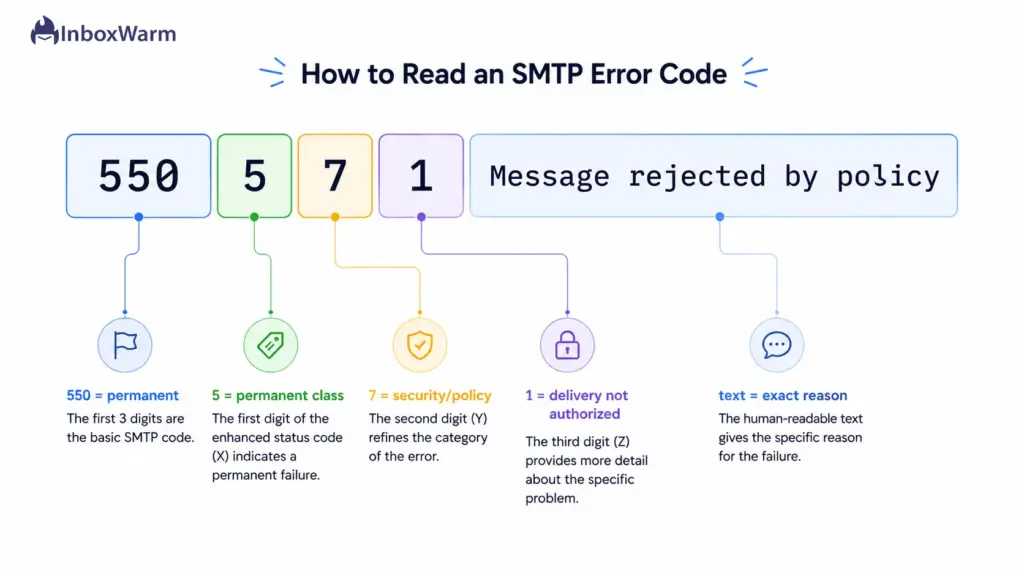
Here is a real rejection broken into its parts:
550 5.7.26 Unauthenticated email from yourdomain.com is not accepted due to the sender domain’s DMARC policy.
Reading left to right, the 550 says “permanent rejection,” so do not retry. The 5.7.26 says it is a security and policy failure, specifically DMARC. The text names the exact problem and even the failing domain. The fix is in your DNS, not in your send schedule.
The Anatomy Of A Bounce Code
Every code follows the same logic. Once you can decode the digits, you can triage any bounce in seconds.
| Part | Example | What It Tells You |
|---|---|---|
| Basic code (1st digit) | 5xx | 2 = success, 4 = temporary failure, 5 = permanent failure |
| Basic code (2nd digit) | x5x | Category: x0x syntax, x2x connection, x5x mail system |
| Enhanced class | 5.x.x | Repeats the verdict: permanent (5) or transient (4) |
| Enhanced subject | x.7.x | 1 address, 2 mailbox, 4 routing, 6 content, 7 security or policy |
| Human-readable text | rejected due to DMARC policy | The exact cause and, often, the fix |
What’s The Difference Between A Hard Bounce And A Soft Bounce?
A hard bounce is a permanent delivery failure marked by a 5xx code, such as a bad address or a policy rejection. A soft bounce is a temporary failure marked by a 4xx code, such as a full mailbox or a busy server. Hard bounces must be removed from your list and the cause fixed. Soft bounces usually resolve on their own through automatic retries.
The distinction is not cosmetic. It controls what you should do next, and getting it wrong damages your sender reputation. A 4xx code is the server saying “not now, try again later.” Your mail server should queue the message and retry with exponential backoff over several hours. A 5xx code is the server saying “this will never work.” Continuing to retry a 5xx wastes resources and signals to the receiver that you are not maintaining your list, which hurts future delivery.
| Soft Bounce (4xx) | Hard Bounce (5xx) | |
|---|---|---|
| Meaning | Temporary failure | Permanent failure |
| Typical codes | 421, 450, 451, 452 | 550, 552, 553, 554 |
| Common causes | Full mailbox, greylisting, rate limit, server load | Bad address, failed auth, blocklist, policy block |
| Correct action | Let the server retry automatically | Fix the cause, then remove or correct the address |
| Reputation risk | Low if it resolves quickly | High if you keep retrying or ignore the pattern |
One caution. A burst of soft bounces from a single provider is often an early warning, not a non-event. If Gmail starts returning 421 rate-limit errors across a campaign, that is a reputation signal telling you to slow down. The fastest way to recover sending volume after a pattern like that is a structured email warm-up, which rebuilds trust with mailbox providers gradually instead of all at once.
Common SMTP Error Codes And Solutions
The table below is the quick reference. Find your code, confirm whether it is temporary or permanent, and read the most likely cause. The detailed fixes for the highest-impact codes follow underneath.
| Code | Type | Meaning | First Move |
|---|---|---|---|
| 421 | Soft (4xx) | Service not available, server busy or rate limiting | Slow down, let the server retry |
| 450 | Soft (4xx) | Mailbox temporarily unavailable or greylisted | Wait, retry on schedule |
| 451 | Soft (4xx) | Local error in processing on the receiving side | Retry, check your own logs too |
| 452 | Soft (4xx) | Insufficient system storage, mailbox or server full | Retry later, trim message size |
| 550 | Hard (5xx) | Mailbox unavailable or message rejected by policy | Read the enhanced code, then fix |
| 550 5.1.1 | Hard (5xx) | User unknown, the mailbox does not exist | Remove the address from your list |
| 550 5.7.1 | Hard (5xx) | Policy block, delivery not authorized | Check auth, reputation, blocklists |
| 550 5.7.26 | Hard (5xx) | Failed DMARC, unauthenticated mail (Gmail) | Align SPF and DKIM with your From domain |
| 552 | Hard (5xx) | Storage limit exceeded, message too large | Reduce attachment or message size |
| 553 | Hard (5xx) | Mailbox name not allowed or relay denied | Verify recipient format and relay rights |
| 554 | Hard (5xx) | Transaction failed, often spam or policy | Investigate content, reputation, blocklists |
Codes and exact wording vary slightly by provider, so always trust the enhanced status code and the human-readable text over a generic lookup. Now to the fixes that matter most.
How To Fix SMTP 421 Error
A 421 error means the receiving server is temporarily unavailable or is throttling you. It is a soft bounce, so your server should retry on its own. The 421 appears most often when you send too fast, hit a rate limit, trigger greylisting, or catch the server during heavy load or a restart.
- Confirm your server is retrying. Check your mail logs and make sure queued messages retry with exponential backoff over several hours rather than hammering the server.
- Reduce your send rate. If 421s cluster around one provider, you are sending faster than your reputation allows. Lower volume per hour and spread sends out.
- Treat repeated 421s as a reputation signal. If the same provider keeps throttling you for days, your domain reputation is low. Pause aggressive sending and warm up before resuming.
How To Fix SMTP 451 Error
A 451 error means the receiving server hit a local error while processing your message. It is also a soft bounce. Most 451s clear on their own, but some are reputation-driven, especially when the text mentions greylisting, rate limiting, or a temporary local error tied to your IP.
- Let the queue retry first. Many 451 responses are transient and resolve within a few hours.
- Read the text. If it cites greylisting, the retry itself is the fix. If it cites your IP or reputation, treat it like a 421.
- If 451s persist with identical text after several hours, escalate to the recipient’s mail admin with your logs.
How To Fix SMTP 550 Error
A 550 error is a permanent rejection, the most common hard bounce. The single number is not enough on its own. A bare 550 5.1.1 means the mailbox does not exist, while a 550 5.7.1 means a policy block. Always read the enhanced code before you act, because the fixes are completely different.
- Identify the variant. 550 5.1.1 means “user unknown,” so remove the address. 550 5.7.1 or 5.7.26 means a policy or authentication block, so do not delete the address; fix the cause.
- Clean the list for address errors. For 5.1.1, suppress the address. Repeatedly mailing dead addresses raises your bounce rate and lowers reputation.
- Fix the source for policy errors. For 5.7.x, verify authentication and check blocklists before resending. Do not blindly retry a permanent rejection.
How To Fix SMTP 550 5.7.1 Rejected
A 550 5.7.1 rejection means the receiving server identified your message and then refused it on policy grounds. It is the most common policy block and also the most ambiguous. The enhanced code 5.7.1 means “delivery not authorized, message refused,” which can point to several different root causes.
The four usual culprits behind a 550 5.7.1 rejection are failed SPF, DKIM, or DMARC authentication; your sending IP or domain on a blocklist; poor sender reputation; or an organizational policy block on the recipient side. Work through them in this order:
- Verify authentication first. Confirm SPF, DKIM, and DMARC pass and align with your From domain. This resolves a large share of 5.7.1 blocks, especially the Gmail variant 5.7.26 and the Microsoft variants.
- Check blocklists. Look up your sending IP and domain on the major lists such as Spamhaus and Barracuda. If listed, follow each list’s delisting process.
- Review reputation. Check Google Postmaster Tools and Microsoft SNDS for your domain and IP. Low reputation needs warm-up and list hygiene, not a resend.
- Review content. Some 5.7.1 blocks are content-driven. Remove spam-trigger phrasing, excessive links, and risky attachments, then test again.
Watch the enhanced code
550 5.7.1 and 550 5.7.26 look similar but point to different fixes. 5.7.26 is specifically a DMARC failure on Gmail. 5.7.1 is a broader policy refusal. Microsoft adds its own variants like 5.7.23 for SPF violations and 5.7.515 for unmet authentication requirements. Record the exact enhanced code before you change anything in DNS.
How To Fix SMTP 554 Error
A 554 error means the transaction failed, the broadest permanent rejection in the SMTP set. It often means the receiving server flagged your message as spam, rejected it on policy, or found your IP on a blocklist. A 554 on connection opening can also mean the server is refusing your IP outright.
- Read the text. A 554 almost always carries a reason: spam, a blocklist, policy, or a URL to a delisting page.
- Check blocklists immediately. A 554 frequently means a listing. Confirm your IP and domain status and request delisting where needed.
- Audit reputation and content. If you are not listed, the 554 is likely due to reputation or content. Rebuild trust with warm-up, tighten list hygiene, and revise spammy content.
Why Are Your Emails Bouncing Back?
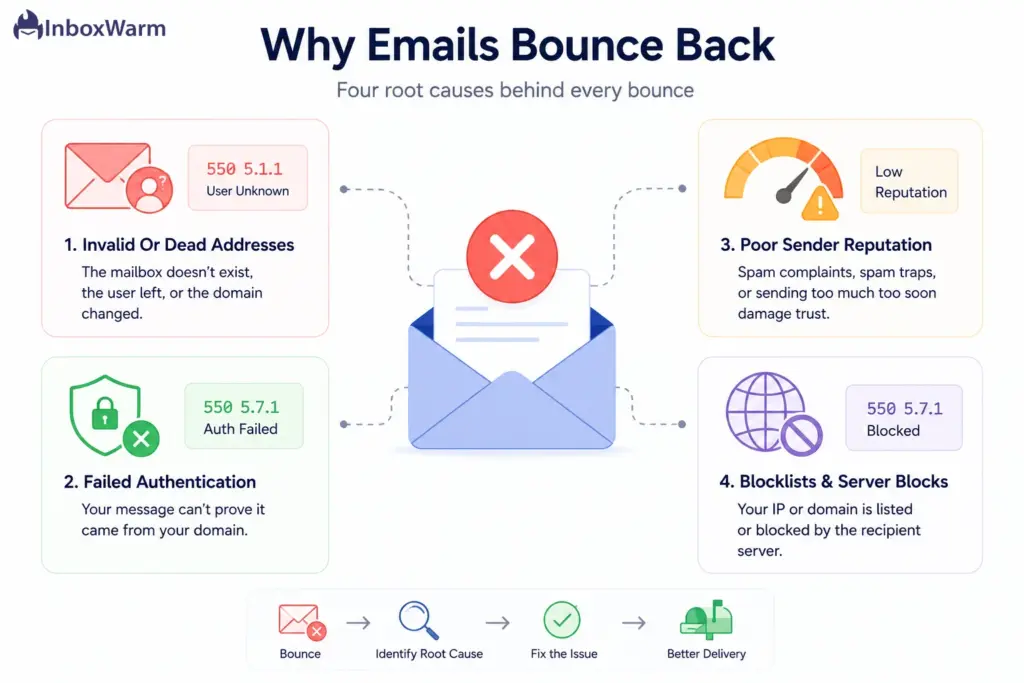
Emails bounce back for four root reasons: invalid recipient addresses, failed authentication, poor sender reputation, or a blocklist hit. Every error code traces to one of these. Fix the root, and the codes stop instead of treating each bounce as a separate fire.
Invalid Or Dead Addresses
This is the most common hard bounce and the easiest to fix. The mailbox does not exist, the user left the company, or the domain changed its mail routing. You will see 550 5.1.1 user unknown. Suppress these addresses immediately, because a high bounce rate from dead addresses is one of the fastest ways to wreck a sending reputation.
Failed Authentication
If your message cannot prove it came from your domain, providers reject it. This shows up as 550 5.7.1, 5.7.26, or the Microsoft variants. The fix is publishing and aligning SPF, DKIM, and DMARC records correctly. This is covered in detail in the authentication section below.
Poor Sender Reputation
Mailbox providers score every sending domain and IP on trust. Send too much too soon from a cold domain, generate spam complaints, or hit spam traps, and your reputation drops. Low reputation produces soft bounces that escalate into hard blocks. According to Google’s sender guidelines, user-reported spam rates above 0.10% start hurting delivery, and a rate at or above 0.30% can get a bulk sender filtered or rejected outright.
Blocklists And Recipient Server Blocks
If your IP or domain lands on a blocklist like Spamhaus, receiving servers reject your mail before it gets near an inbox. You will see 550 5.7.1 or 554 with text naming the list. Blocklists usually trigger from spam complaints, spam-trap hits, or sudden volume spikes from an unwarmed domain.
How Do You Fix Email Authentication Errors?
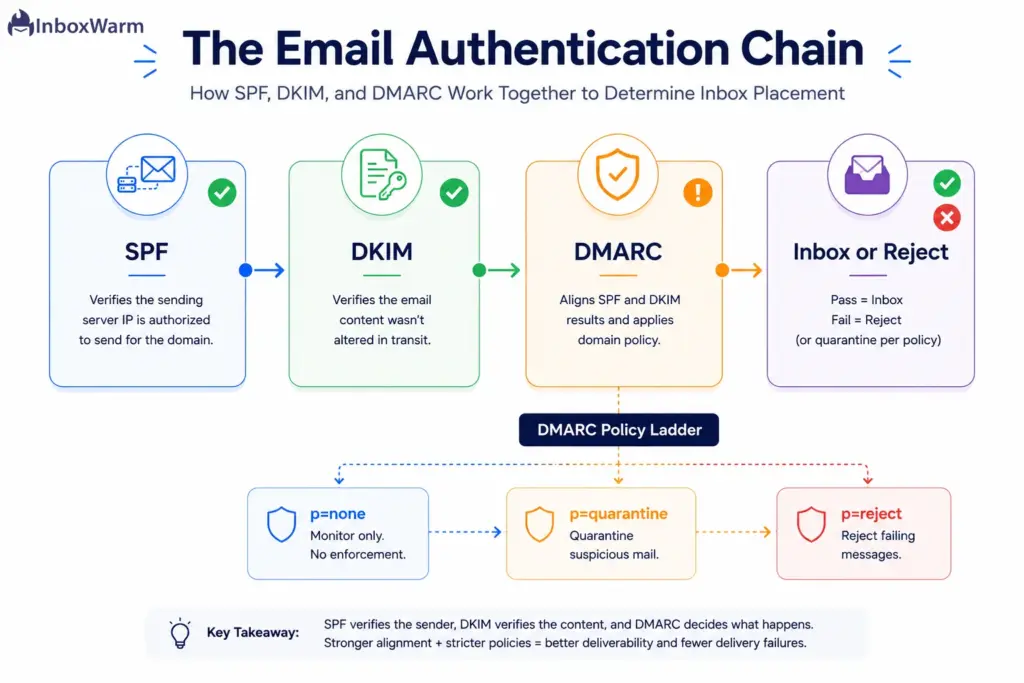
Email authentication errors happen when SPF, DKIM, or DMARC fail to prove your message is legitimate. The fix is publishing correct DNS records and aligning them with your From domain. DMARC only passes when at least one of SPF or DKIM passes and aligns, so all three work together. Since February 2024, Google and Yahoo require valid authentication for bulk senders, so this is no longer optional.
Fix SPF Fail Errors
Sender Policy Framework (SPF) is a DNS record listing the servers allowed to send mail for your domain. An SPF fail means your message came from a server not on that list. To fix it, list every sending service you use, including your email host, plus tools like SendGrid, Amazon SES, or Mailchimp, in a single SPF record.
Use an SPF record generator to build it, then confirm it resolves with an SPF checker. Keep within the 10 DNS lookup limit defined in RFC 7208, or SPF returns a permerror.
Fix DKIM Verification Failed Errors
DomainKeys Identified Mail (DKIM) signs your messages with a cryptographic key so the receiver can verify the message was not altered and truly came from your domain. A DKIM verification failure usually means the public key in your DNS does not match the signing key, or the record was never published.
Your email provider gives you the DKIM record to add to DNS. Publish it, wait for propagation, then validate it with a DKIM checker. Rotate DKIM keys every 6 to 12 months as a hygiene practice.
Fix DMARC Errors
Domain-based Message Authentication, Reporting, and Conformance (DMARC) tells receivers what to do when SPF and DKIM fail and requires alignment with your visible From domain. A 550 5.7.26 from Gmail means DMARC rejected your mail. Publish a DMARC record and start p=none to monitor without blocking.
Once SPF and DKIM pass consistently, move to p=quarantine, then p=reject. confirm the record with a DMARC checker before you tighten the policy.
Authentication fix order
- Publish and verify SPF. Confirm every sending service is listed.
- Publish and verify DKIM. Confirm the signature is validated on a test send.
- Publish DMARC at p=none. Read aggregate reports for a week or two.
- Tighten to p=quarantine, then p=reject, only after SPF and DKIM pass and align.
How Do You Fix Provider-Specific Delivery Failures?
Gmail and Outlook are the two providers that generate the most bounces for cold and bulk senders, and they word their errors differently. The underlying causes overlap, but the codes and the dashboards you use to diagnose them do not. Here is how to handle each.
Fix Gmail Bounce-Back Errors
Gmail bounce-back errors usually carry a 5.7.x enhanced code and a clear text reason. The most common is 550 5.7.26, which means your mail failed DMARC and was rejected as unauthenticated. Gmail classifies any domain sending 5,000 or more messages per day to Gmail addresses as a bulk sender, and that classification is permanent once triggered. Bulk senders must authenticate with SPF, DKIM, and DMARC; keep spam complaints below the threshold; and offer one-click unsubscribe under RFC 8058.
To fix Gmail bounces, align your authentication first, then monitor your standing in Google Postmaster Tools. Keep your user-reported spam rate below 0.10% and never let it reach 0.30%, because Gmail continues to enforce bulk sender requirements aggressively, and domains with elevated spam complaint rates may see increased spam-folder placement, throttling, or outright rejection.
If reputation is the problem, a steady Gmail warm-up rebuilds trust before you scale volume again.
Fix Outlook Email Delivery Failures
Outlook and Microsoft 365 return their own enhanced codes. A 550 5.7.23 means an SPF violation, while 550 5.7.515 means your mail did not meet Microsoft’s authentication requirements. Microsoft began enforcing authentication for senders of 5,000 or more messages per day on May 5, 2025, requiring SPF, DKIM, and DMARC with at least p=none alignment.
Fix Outlook delivery failures by publishing aligned SPF, DKIM, and DMARC records, then checking your reputation in Microsoft SNDS and the Smart Network Data Services dashboard. Outlook is especially sensitive to new or cold IPs, so ramp volume slowly. A structured Outlook warm-up helps establish a sending history Microsoft trusts.
What Causes “Email Blocked By Recipient Server”?
“Email blocked by recipient server” means the receiving mail server refused your message before delivery, usually on reputation, authentication, or blocklist grounds. It is not a problem with the recipient’s mailbox. It is a trust decision the server made about you. The error typically arrives as 550 5.7.1 or 554.
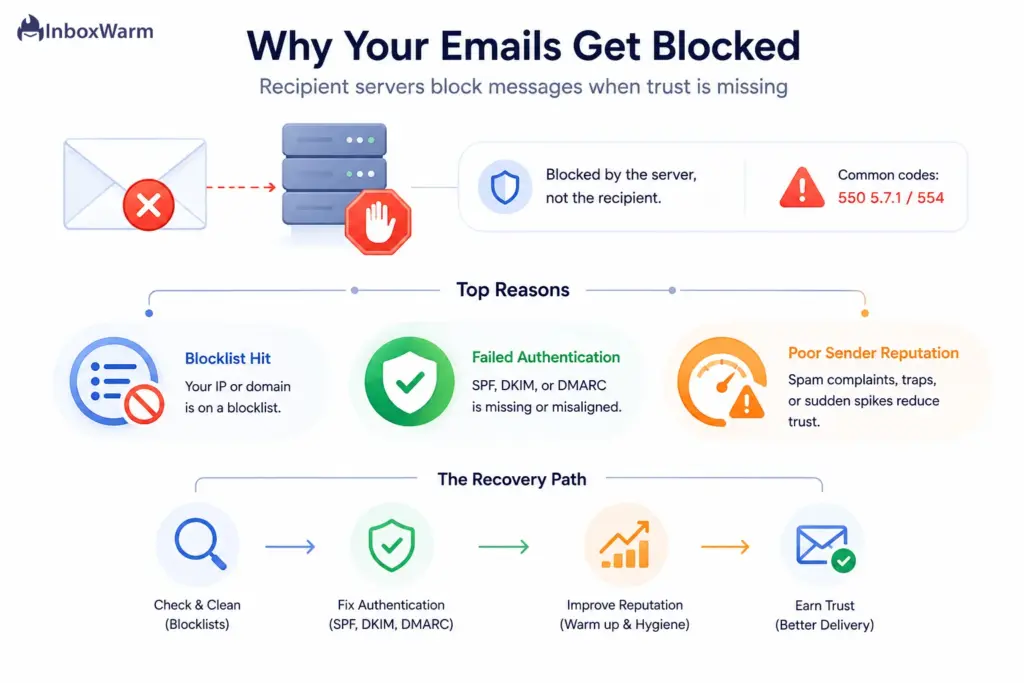
Three things cause most server-side blocks. First, a blocklist hit: your IP or domain is on a list like Spamhaus, so the server rejects on sight. Second, failed authentication: without aligned SPF, DKIM, and DMARC, the server cannot trust the message. Third, poor sender reputation: a history of spam complaints, spam-trap hits, or volume spikes from an unwarmed domain tells the server to refuse you.
The recovery path is the same for all three. Confirm you are not blocklisted and delist if you are, verify your authentication aligns and rebuild sender reputation through warm-up and disciplined list hygiene. Blocks driven by reputation do not clear with a resend. They clear when the receiving server starts trusting your domain again.
How Do You Prevent Email Delivery Failures?
You prevent delivery failures by fixing the root causes before you send: authenticate every domain, warm up new domains and IPs, keep lists clean, and monitor reputation continuously.
Prevention is cheaper than recovery, because a single reputation crash can sideline a sending domain for weeks.
- Authenticate everything: Publish aligned SPF, DKIM, and DMARC on every sending domain before the first campaign. This single step prevents most 5.7.x rejections.
- Warm up new domains and IPs: Never blast from a cold domain. Build sending volume gradually so providers learn to trust you. This is the single biggest lever for cold email senders.
- Keep lists clean: Verify addresses before sending, suppress hard bounces immediately, and remove inactive contacts. Dead addresses and spam traps drive both bounces and complaints.
- Watch your spam rate: Monitor Google Postmaster Tools and Microsoft SNDS. Keep complaints below 0.10% and act fast if they climb toward 0.30%.
- Send at a steady pace: Avoid volume spikes. Sudden jumps look like spam behavior and trigger throttling and blocks.
This is exactly the problem an email warm-up tool solves. InboxWarm.ai is an AI-powered email warm-up tool that improves inbox placement and sender reputation. It sends and engages with mail across a network of real inboxes on your behalf, building the positive sending history that keeps the error codes in this guide from showing up in the first place.
Conclusion
Email error codes are not random noise. They are a precise diagnostic system, and once you can read them, every delivery failure becomes solvable. The first digit tells you temporary or permanent; the enhanced status code tells you the category; and the text tells you the cause. Master that pattern and you can triage any bounce, from a routine 421 throttle to a stubborn 550 5.7.1 block, in seconds.
The fixes cluster around four roots: bad addresses, failed authentication, poor reputation, and blocklists. Clean your list to kill 5.1.1 user-unknown bounces. Align SPF, DKIM, and DMARC to clear the 5.7.x rejections Gmail and Outlook now enforce. Watch your spam rate to catch soft bounces before they harden into blocks.
The deeper lesson is that most email error codes are reputation problems in disguise. A domain providers trust rarely sees hard bounces, and the surest way to earn that trust, especially on a new or cold domain, is a disciplined warm-up paired with clean authentication and good list hygiene. Fix the foundation, and the delivery failures stop chasing you.
Frequently Asked Questions
Why are my emails bouncing back?
Emails bounce back for one of four reasons: the recipient address is invalid, your authentication failed, your sender reputation is poor, or your IP or domain is on a blocklist. The error code points you to which one. Invalid addresses show 5.1.1, authentication failures show 5.7.x, and reputation or blocklist issues show 5.7.1 or 554. Fix the root cause rather than just resending.
What is the difference between a hard bounce and a soft bounce?
A hard bounce is a permanent failure marked by a 5xx code, such as a bad address or a policy rejection. A soft bounce is a temporary failure marked by a 4xx code, such as a full mailbox or a busy server. Soft bounces usually resolve through automatic retries, while hard bounces require you to fix the cause and remove or correct the address. Repeatedly retrying a hard bounce damages your sender reputation.
How do I fix a 550 5.7.1 rejected error?
Work through the causes in order: verify SPF, DKIM, and DMARC pass and align, check whether your IP or domain is on a blocklist, review your sender reputation in Postmaster Tools, and inspect your content for spam triggers. The 5.7.1 code is a broad policy refusal, so the fix depends on the human-readable text. Do not retry the message until you have fixed the underlying cause, because a 5xx code is permanent.
How do I stop emails from going to spam?
Authenticate your domain with aligned SPF, DKIM, and DMARC, keep your spam complaint rate below 0.10%, clean your list regularly, and warm up new domains before sending volume. A strong sending reputation is what keeps mail in the inbox. A consistent email warm-up builds that reputation faster and more reliably than sending cold.
Do soft bounces hurt my sender reputation?
A few soft bounces are normal and low risk, especially when they resolve through retries. The danger is a pattern. Repeated 421 or 451 errors from the same provider are an early warning that your reputation is slipping or that you are sending too fast. Treat a cluster of soft bounces as a signal to slow down and check your standing, not as something to ignore.
Tired Of Decoding Bounce Codes Every Morning?
Most delivery failures come back to one thing: a domain mailbox providers don’t trust yet. InboxWarm.ai is an AI-powered email warm-up tool that builds that trust automatically, so SPF, DKIM, and reputation work for you instead of against you. Start free for 10 days, no credit card required.