

TL;DR
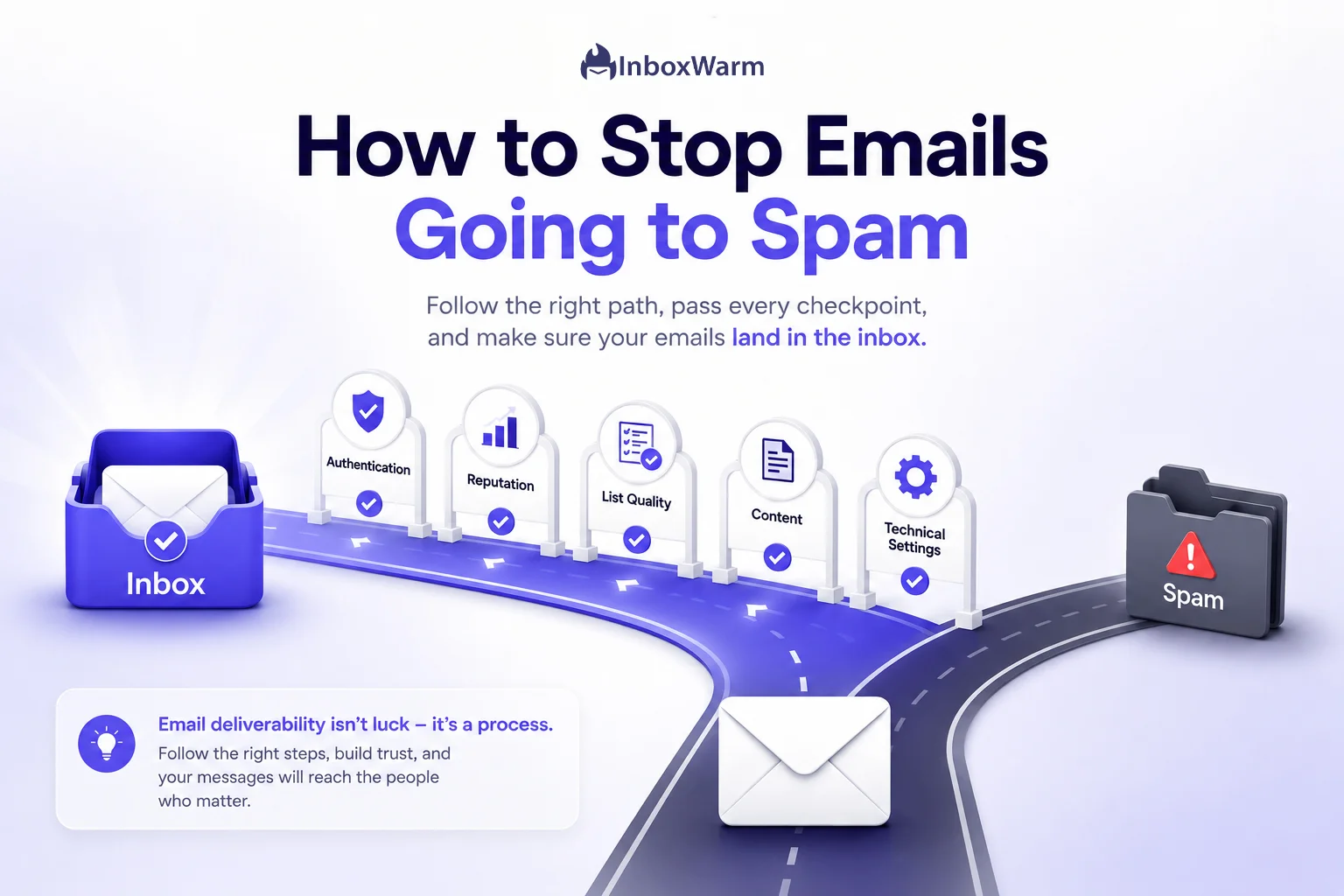
To stop emails going to spam, authenticate your domain with SPF, DKIM, and DMARC, warm up every new mailbox before you scale volume, keep your spam complaint rate below 0.3%, scrub your list of invalid and unengaged contacts, and write plain, relevant emails with a visible unsubscribe link. Spam placement is almost always a reputation or authentication problem, not bad luck.
- Authentication is the foundation. Gmail has required SPF or DKIM from every sender since February 2024.
- Sender reputation decides placement. Warm up, send consistently, and keep spam complaints below Google’s 0.3% threshold.
- List quality beats volume. Verify addresses, remove bounces, and only email people who opted in.
- Content and technical settings are the final layer. Skip spam trigger words and set up reverse DNS, TLS, and one-click unsubscribe.
Most senders find out their mail is going to spam the slow way. A campaign that should pull replies just goes quiet. There is no bounce, no error, no warning, because the message was accepted, scored, and filed in a folder the recipient might open once a month. By the time the pattern is obvious, the domain has already taken the hit.
What changed is the price of getting it wrong. Since February 2024, Gmail and Yahoo have enforced hard requirements on bulk senders, and Microsoft joined them in May 2025. Mail that fails their checks is no longer tucked quietly into spam. It gets rejected outright, with a permanent error code. One careless send can pull an entire domain down, and a burned reputation takes weeks of disciplined sending to rebuild.
This guide is the complete prevention checklist for keeping emails out of spam. You will learn the five root causes of spam placement, how to set up SPF, DKIM, and DMARC correctly, how to build and protect sender reputation, how to keep your list clean, and how to write emails that filters trust.
At the end you get a single consolidated checklist you can run before every campaign.
Table of Contents
Why Are Your Emails Going to Spam?
Your emails go to spam for one of five reasons: broken authentication, weak sender reputation, poor list quality, spam-triggering content, or misconfigured technical settings. Mailbox providers score every message across these signals in real time. One serious failure, like a missing DKIM signature or a sudden spike in spam complaints, is usually enough to push an entire campaign into the junk folder.
A spam filter is the system a mailbox provider uses to decide whether a message reaches the inbox, the promotions tab, or the spam folder. It does not read your intentions. It reads signals. The five categories below map directly to the signals every major provider checks:
- Authentication: Can the provider verify the message really came from your domain?
- Sender reputation: Does your domain and IP have a history of wanted, low-complaint mail?
- List quality: Are you sending to real, engaged people, or to dead and purchased addresses?
- Content: Does the message look like a normal human email or like bulk promotional spam?
- Technical settings: Is your sending infrastructure configured the way providers expect?
If you want the full picture before working through the fixes, the guide to email deliverability walks through inbox placement, sender reputation, and domain health in one place. Outreach senders dealing with this most often will also recognize the patterns in why cold emails go to spam. The rest of this checklist fixes all five categories in order, starting with the one that blocks everything else.
How Do You Authenticate Your Email to Stay Out of Spam?
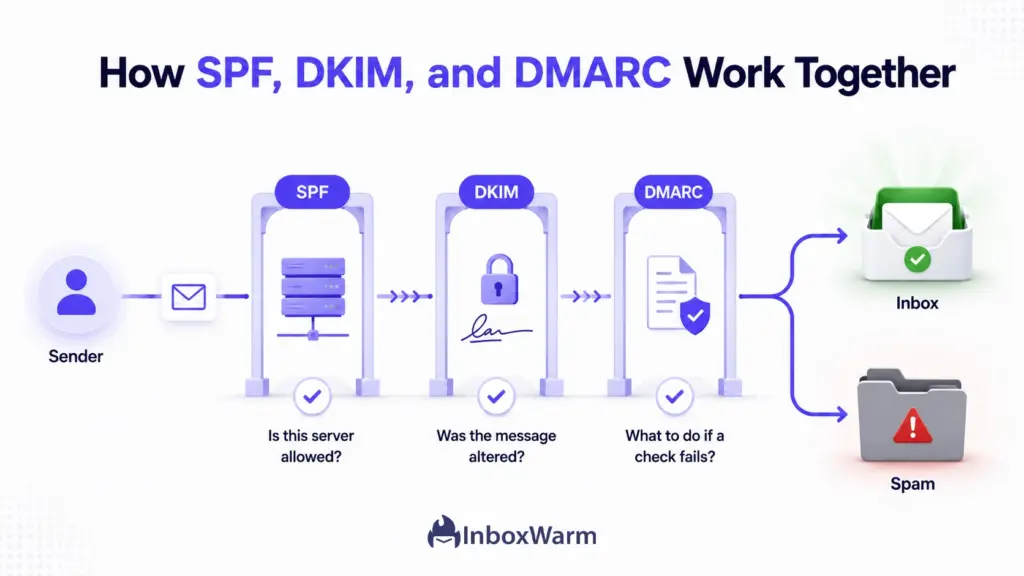
Email authentication proves you are who you claim to be. Three DNS records do the work: SPF, DKIM, and DMARC. Since February 2024, Google requires every sender to Gmail to set up at least SPF or DKIM, and senders of 5,000 or more messages a day need all three plus a valid DMARC policy.
Without authentication, providers treat your mail as suspicious by default, no matter how good the content is.
Set Up SPF First
SPF (Sender Policy Framework) is a DNS record that lists the servers allowed to send mail for your domain, defined in RFC 7208. When a provider receives your email, it checks whether the sending server appears on that list. If it does not, the message looks spoofed. Add a single SPF record per domain, include every service you send through, and confirm it resolves with an SPF Checker before you rely on it.
Add a DKIM Signature
DKIM (DomainKeys Identified Mail), defined in RFC 6376, attaches a cryptographic signature to every message. The provider uses your public key, published in DNS, to confirm the email was not altered in transit and really came from your domain. Publish the DKIM key your sending platform generates, then validate it with a DKIM Checker. A broken or missing DKIM signature is one of the fastest ways to land in spam.
Enforce a DMARC Policy
DMARC (Domain-based Message Authentication, Reporting, and Conformance), defined in RFC 7489, tells providers what to do when SPF or DKIM fail. Start with a monitoring policy of p=none to collect reports without affecting delivery. Once your reports are clean, move to p=quarantine, then to p=reject for full protection. Generate a correct record with a DMARC generator rather than writing the syntax by hand.
How Do You Build and Protect Sender Reputation?
Sender reputation is the single biggest factor in inbox placement. It is the trust score mailbox providers assign your domain and IP based on how you send and how recipients react. You build it three ways: warm up new mailboxes before sending volume, keep your sending pattern steady, and hold complaints well under the limits providers enforce.
Warm Up Every New Domain and Mailbox
A brand-new domain has no sending history, so providers have no reason to trust it. Email warm-up is the process of gradually building a mailbox’s reputation by sending a slowly increasing volume of mail that gets opened and replied to. InboxWarm.ai is an AI-powered email warm-up tool that improves inbox placement and sender reputation automatically. A standard schedule starts at five to ten emails a day in week one, then increases 20 to 30% every three to five days.
Keep Your Sending Volume Consistent
Providers watch for sudden change. A domain that sends 20 emails a day for a month and then blasts 2,000 looks compromised, and the volume spike alone can trigger filtering. Ramp up gradually, avoid sending in unpredictable bursts, and keep a steady baseline even between campaigns. Agencies managing many mailboxes can keep this consistent at scale with automated email warmup running quietly in the background.
Monitor Your Spam Complaint Rate
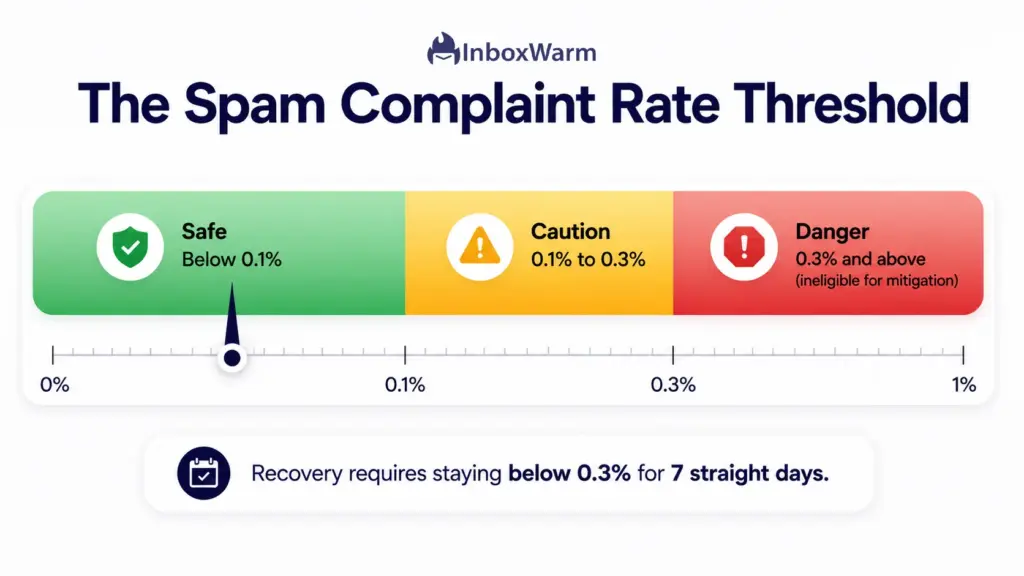
Your spam complaint rate is the percentage of recipients who click ‘Report spam’. Google requires senders to keep this rate below 0.3% and recommends staying under 0.1%. Cross 0.3% and bulk senders become ineligible for mitigation, meaning delivery problems are no longer given the benefit of the doubt. You only become eligible again after the rate stays below 0.3% for seven consecutive days. Track it daily in Google Postmaster Tools, and watch your sender score as a broader reputation signal.
How Do You Keep Your List From Sending You to Spam?
A dirty list damages reputation faster than anything else. Every bounce, spam trap, and unengaged contact tells providers you do not manage who you send to. Clean the list before reputation problems start, not after delivery has already dropped.
Verify Every Address Before You Send
Invalid addresses cause hard bounces, and a high bounce rate is a clear signal of a low-quality list. Run new contacts through an email verification step before they enter a campaign. This single habit removes typos, dead mailboxes, and many spam traps in one pass, and it protects the reputation you worked to build.
Remove Hard Bounces and Dormant Contacts
A hard bounce means the address does not exist or has permanently rejected your mail. Suppress those addresses immediately and never retry them. Contacts who have not opened or clicked in months are also a liability, because low engagement drags down placement. Prune dormant subscribers on a regular schedule.
Only Email People Who Asked to Hear From You
Permission is the cheapest deliverability insurance there is. Purchased and scraped lists are full of spam traps and people who never agreed to hear from you, and they generate complaints the moment you send. Build your list through real opt-ins, and you start every campaign with an audience that wants the message.
How Do You Write Emails That Filters Trust?
Content filters scan every message for patterns common to spam: aggressive sales language, broken or shortened links, image-heavy layouts, and missing unsubscribe options. Clean copy with a clear purpose passes. Hype gets flagged.
The goal is to look like a normal person writing a normal email.
Avoid Spam Trigger Words
Certain phrases are strongly associated with junk mail. Words like ‘free money’, ‘act now’, and ‘risk-free’ raise a content score that can tip a borderline message into spam. You do not need to memorize them all. Keep the writing plain and specific, and check anything promotional against a current spam trigger words list before sending.
Balance Text, Links, and Images
An email that is one giant image with a single link is a classic spam pattern. Lead with real text, keep images supporting rather than carrying the message, and limit the number of links. Avoid public URL shorteners, which are heavily abused and often distrusted by filters. A simple, mostly-text email almost always outperforms a heavy template for deliverability.
Always Include a Visible Unsubscribe Link
A missing or hidden unsubscribe option pushes frustrated recipients to hit ‘Report spam’ instead, which is far more damaging than an opt-out. Include a clear unsubscribe link in every commercial email. It protects your complaint rate and keeps you compliant with provider requirements.
Example: A Template That Filters Trust
Subject: Quick question about [Company]’s onboarding flow
Hi [First Name],
I was looking at how [Company] onboards new users and noticed your signup confirmation emails route through a shared domain.
That setup often hurts inbox placement once volume grows. We help teams like yours fix it before it costs you signups.
Worth a 15-minute call next week? If not, no worries at all.
Best,
[Your Name]
[Title], [Company]
[Phone]
Don’t want to hear from me again? Reply “unsubscribe” and I’ll remove you.
Which Technical Settings Do Spam Filters Check?
Beyond authentication, filters check infrastructure-level signals: reverse DNS, encryption, and your unsubscribe mechanism. These are usually set once and then forgotten, which is exactly why they are easy to miss when troubleshooting.
Set Valid Forward and Reverse DNS Records
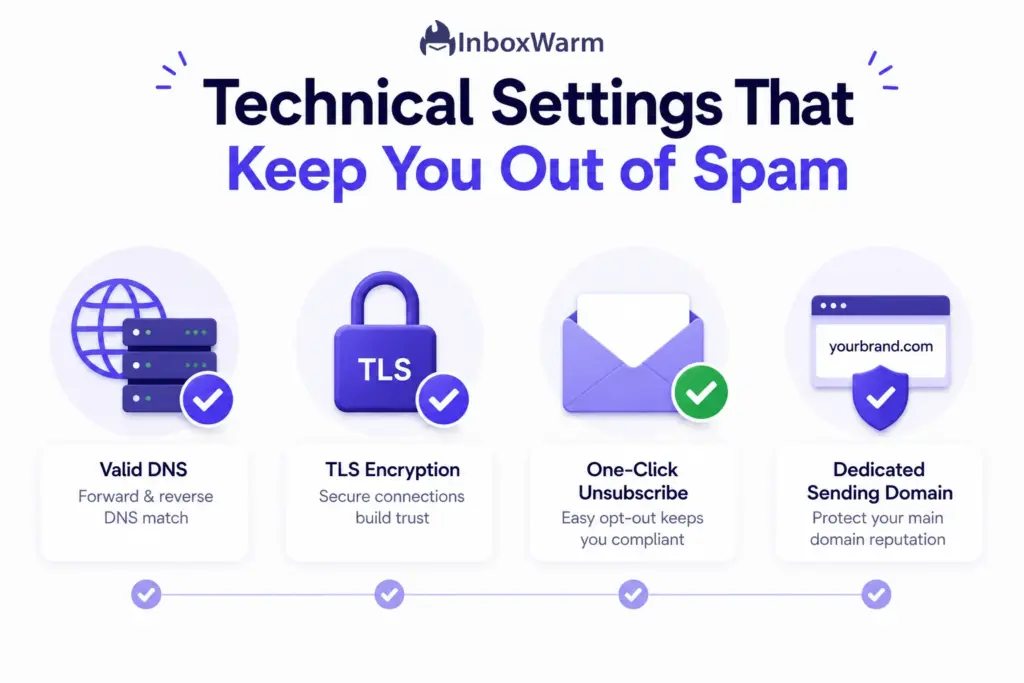
Google requires that sending domains or IPs have valid forward and reverse DNS records, also called PTR records. Reverse DNS lets a receiving server confirm that the IP sending your mail matches the hostname it claims. A missing PTR record makes your server look anonymous, and anonymous servers get filtered. Ask your sending provider to confirm reverse DNS is in place.
Send Over a TLS Connection
Transport Layer Security (TLS) encrypts the connection between mail servers. Google lists a TLS connection as a requirement for senders to Gmail, and most reputable platforms enable it by default. Confirm it is on rather than assuming, because an unencrypted connection is both a security and a deliverability problem.
Add One-Click Unsubscribe for Bulk Sending
Senders of 5,000 or more messages a day to Gmail must support one-click unsubscribe and process opt-out requests within two days. This is implemented through a header standard so recipients can leave without loading a landing page. If you send at volume, treat one-click unsubscribe as mandatory, not optional.
Use a Dedicated Sending Domain or Subdomain
Sending cold outreach or bulk campaigns from your primary domain puts your main business email at risk. If that domain’s reputation drops, your everyday correspondence suffers too. Use a separate domain or a dedicated subdomain for campaigns so reputation problems stay contained.
The Complete Checklist to Stop Emails Going to Spam
Run this checklist before every campaign. It is grouped by the five root causes, so when placement drops, you can find the failing layer fast. Work top to bottom, because each layer depends on the one above it.
| Category | Check Before You Send |
|---|---|
| Authentication | ☐ SPF record published and passing (one record per domain) ☐ DKIM signature added and validated ☐ DMARC policy in place (p=none, then quarantine, then reject) ☐ All three records verified with a checker, not assumed |
| Reputation | ☐ New domains and mailboxes warmed up before volume sending ☐ Sending volume ramped gradually with no sudden spikes ☐ Spam complaint rate below 0.3% (target under 0.1%) ☐ Postmaster Tools connected and monitored daily |
| List Quality | ☐ Every address verified before it enters a campaign ☐ Hard bounces suppressed and never retried ☐ Dormant, unengaged contacts pruned on a schedule ☐ No purchased or scraped lists; opt-in only |
| Content | ☐ Copy checked against a spam trigger words list ☐ Real text leads; images support rather than carry the message ☐ No public URL shorteners; links kept to a minimum ☐ Visible unsubscribe link in every commercial email |
| Technical | ☐ Valid forward and reverse DNS (PTR) records confirmed ☐ TLS connection enabled for sending ☐ One-click unsubscribe set up for bulk sending (process within 2 days) ☐ Campaigns sent from a dedicated domain or subdomain |
How Do You Test Whether Your Emails Are Landing in Spam?
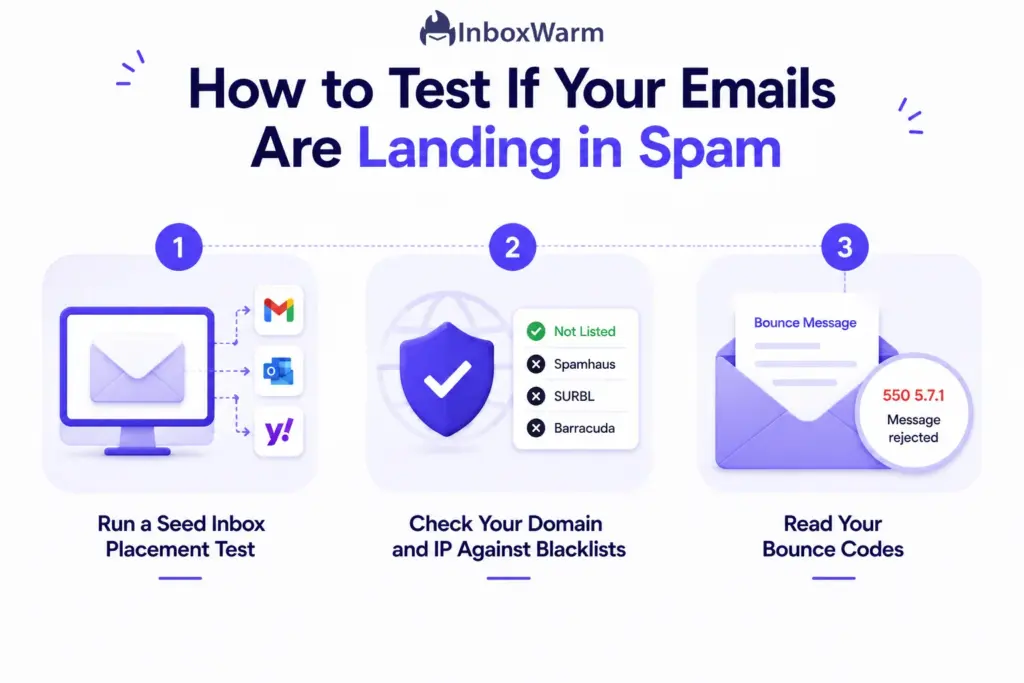
Do not guess at placement. Run a seed test to see where your mail actually lands across providers, check your domain against major blacklists, and read your bounce messages for specific clues. Testing turns ‘I think we have a problem’ into ‘Here is the exact problem.’
Run a Seed Inbox Placement Test
A seed test sends your email to a set of monitored inboxes across Gmail, Outlook, Yahoo, and others and then reports whether each copy landed in the inbox, promotions, or spam folder. This shows real placement instead of the inflated picture a single test account gives you. Run a seed test before any large send and after any change to your setup.
Check Your Domain and IP Against Blacklists
If your sending domain or IP appears on a major blocklist such as Spamhaus, delivery collapses everywhere at once. Check your status regularly, and if you are listed, fix the underlying cause (often a compromised account or a bad list) before requesting delisting. Removal without a fix is temporary.
Read Your Bounce Codes
When mail is rejected, the bounce message contains a status code that tells you why. A code can point to a full mailbox, a blocked IP, or a reputation problem, and each one suggests a different fix. The reference on email error codes decodes the common ones so you can act on them instead of guessing.
Conclusion
Spam placement feels like bad luck, but it is a solved problem when you treat it systematically. Almost every case traces back to one of five layers, and each layer has a clear, repeatable fix. The senders who consistently reach the inbox are not lucky. They are the ones who set up the foundation once and then protect it.
Work the layers in order. Authentication comes first, because nothing else matters if a provider cannot verify you. Reputation comes next, built through warm-up and steady, low-complaint sending. List quality and content protect the reputation you build, and a few technical settings close the remaining gaps. Move through them top to bottom, and most emails going to spam stop going to spam.
Reputation is the layer that takes time and constant maintenance, which is exactly where warm-up earns its place. Get authentication right today, start warming any new mailbox before you scale, and run the checklist above before every campaign. That routine is what keeps deliverability healthy long after the initial setup is done.
Frequently Asked Questions
Does email warm-up stop emails from going to spam?
Warm-up builds the sender reputation that keeps mail out of spam, so it is a core prevention step, especially for new domains. It does not fix problems it cannot control, such as a missing DKIM signature, a purchased list, or spam-triggering content. Pair warm-up with authentication and clean list habits for it to work.
Can a single spam complaint send my emails to spam?
One complaint will not sink an established sender, because complaint rate is measured as a percentage of volume. The risk is highest for low-volume or new senders, where a few complaints can push the rate past Google's 0.3% threshold quickly. The safest approach is to keep the rate under 0.1% by sending only to people who opted in.
Why do my emails go to spam in Gmail but not Outlook?
Gmail and Outlook use different filters and weigh signals differently, so reputation is provider-specific. You can have a solid reputation with one and a weak one with the other, often because of where your recipients and complaints concentrate. Warm-up tools that include both Gmail and Outlook seed inboxes help you build trust across providers at the same time.
Do spam trigger words still matter in 2026?
They matter less than authentication and reputation, but they still contribute to a content score that can tip a borderline message into spam. No single word will block a message from a trusted sender. The practical rule is to write plainly, skip hype, and check promotional copy against a current trigger words list before sending.
How do I stop my emails going to spam without a deliverability tool?
You can do most of it manually: publish SPF, DKIM, and DMARC, send a small and steadily increasing volume, only email opted-in contacts, and keep your copy clean. The hard part to do by hand is consistent warm-up and daily reputation monitoring across many mailboxes. That is the work most senders eventually automate.
Stop guessing why your emails land in spam.
InboxWarm.ai automatically builds and maintains your sender reputation through AI-powered email warm-up, helping more of your emails reach the inbox instead of the spam folder.