

TL;DR
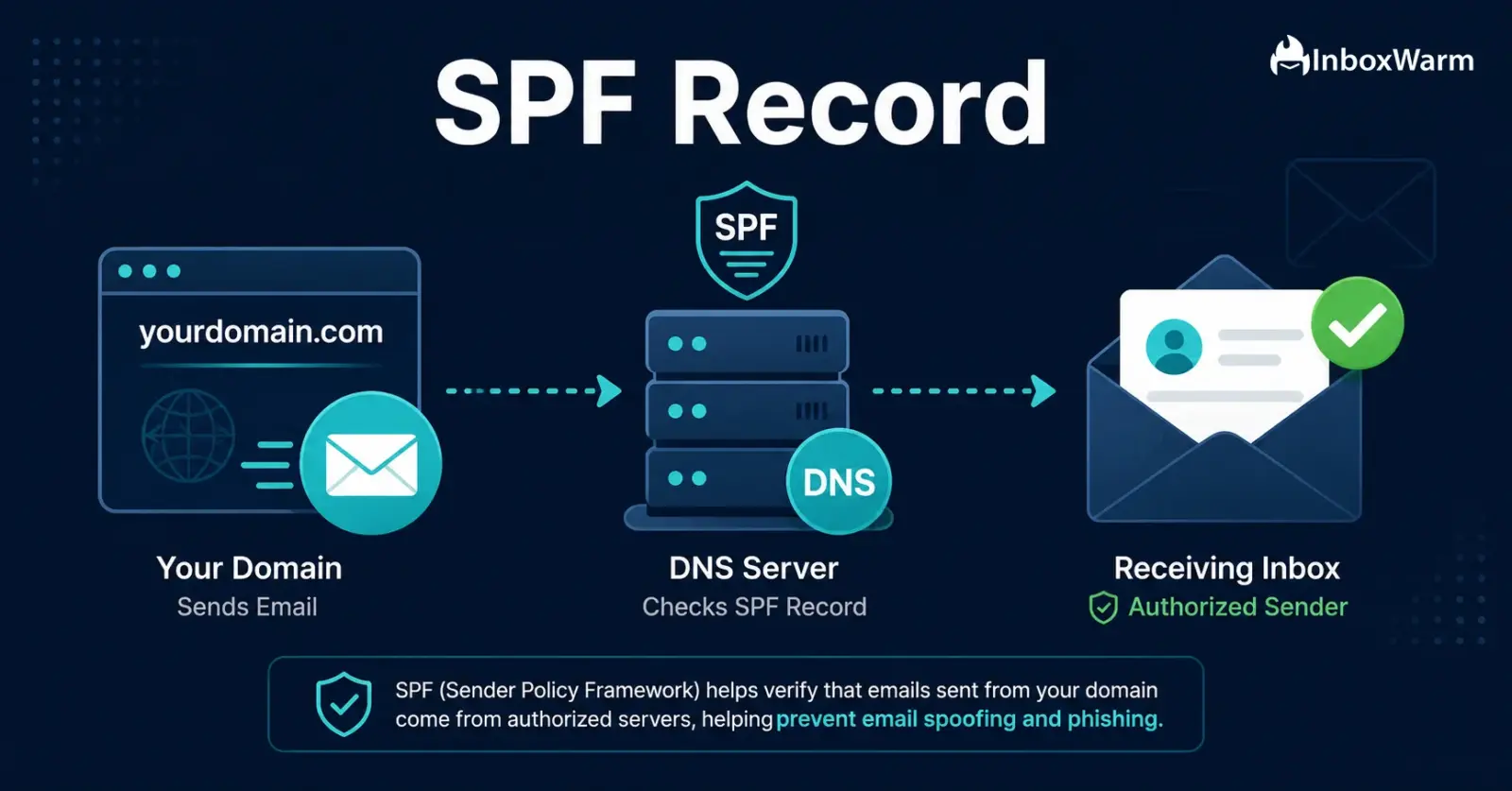
An SPF record is a DNS TXT record that lists all servers authorized to send email on behalf of your domain.
Without SPF, inbox providers like Gmail and Outlook cannot verify your email is legitimate, sending it to spam.
SPF syntax uses mechanisms like ‘ip4:’, ‘include:’, and ‘a’ to specify authorized senders.
Common SPF mistakes include exceeding the 10 DNS lookup limit, using +all, and publishing duplicate records.
SPF alone is not enough: you need DKIM and DMARC for full email authentication coverage.
A warmed inbox with proper SPF, DKIM, and DMARC in place dramatically improves inbox placement rates.
An SPF record (Sender Policy Framework record) is a DNS TXT record that tells receiving mail servers exactly which IP addresses and sending services are authorized to send email on behalf of your domain. When an email arrives claiming to be from yourcompany.com, the receiving server checks your DNS for an SPF record.
If the sending server’s IP is listed, the email passes SPF authentication. If it is not listed, the email fails and is likely sent to spam or rejected entirely.
SPF is one of three foundational email authentication standards, alongside DKIM and DMARC. Without a correctly configured SPF record, even a perfectly written cold email from a freshly warmed domain can land in spam.
Google and Yahoo now require SPF for bulk senders as part of their 2024 sender requirements, making it non-negotiable for any business doing outbound email.
According to Validity’s 2023 Benchmark Report, 1 in 6 legitimate emails never reaches the inbox. For cold email senders, that number is closer to 1 in 3. SPF configuration is one of the first technical checks inbox providers run before your content is ever evaluated. Getting it right is not optional: it is the baseline for everything else in your deliverability stack.
Table of Contents
What Is an SPF Record and Why Does It Matter?
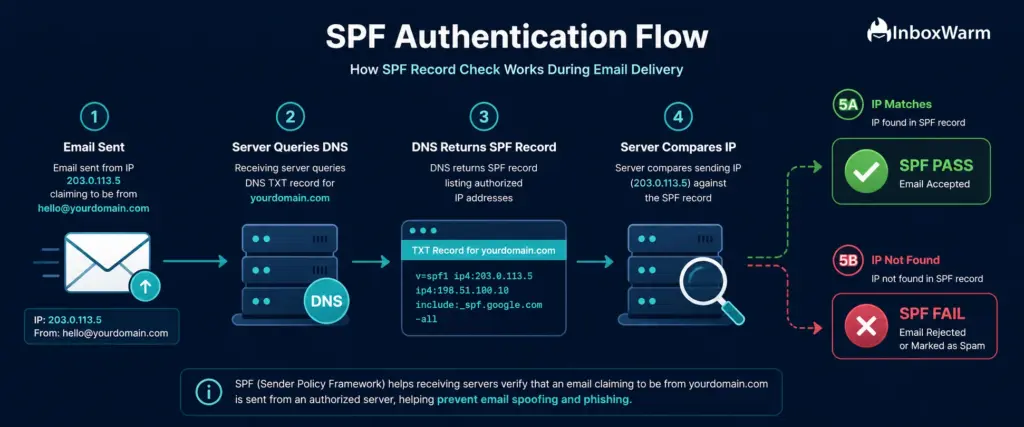
SPF stands for Sender Policy Framework. It is an email authentication protocol first published in RFC 4408 (2006) and updated in RFC 7208 (2014). Its job is simple: let domain owners publish a list of authorized sending sources so receiving mail servers can verify the legitimacy of inbound email.
When you send an email, your domain’s SPF record is checked against the IP address of the server that sent it. If there is a match, the email passes SPF. If there is no match, it fails. The outcome of that check feeds into the receiving server’s spam-filtering decision, your domain’s sender reputation score, and, ultimately, whether your email lands in the inbox or disappears into spam.
For cold email senders, SDR teams, and agencies managing multiple client domains, SPF matters for three concrete reasons:
- Inbox placement: Failing SPF authentication is one of the most common causes of legitimate emails being routed to spam.
- Spoofing protection: SPF prevents bad actors from forging your domain to send phishing or spam emails, which protects your sender reputation.
- DMARC alignment: DMARC policies require that SPF (and/or DKIM) pass and align before granting you control over what happens to unauthenticated email.
What Does SPF Record Syntax Actually Look Like?
An SPF record is a single TXT record published in your domain’s DNS. It always starts with a version tag and then lists one or more mechanisms that define authorized senders. Here is what a typical SPF record looks like:
Breaking down each component:
| Component | Example | What It Means |
|---|---|---|
| v=spf1 | v=spf1 | Version tag. Required. Must be first. |
| ip4: | ip4:203.0.113.5 | Authorizes a specific IPv4 address or CIDR range. |
| ip6: | ip6:2001:db8::/32 | Authorizes an IPv6 address or range. |
| include: | include:_spf.google.com | Includes another domain's SPF record (e.g., for G Suite or SendGrid). |
| a | a:mail.yourdomain.com | Authorizes the IP resolved from the domain's A record. |
| mx | mx | Authorizes the IPs listed in the domain's MX records. |
| ~all | ~all | SoftFail: emails from unlisted IPs are accepted but flagged. |
| -all | -all | HardFail: emails from unlisted IPs are rejected outright. |
| ?all | ?all | Neutral: no policy enforcement. Not recommended. |
| +all | +all | PassAll: authorizes every IP. NEVER use this. |
What Is the Difference Between ~all and -all?
This is one of the most debated SPF configuration decisions. Here is the practical breakdown:
- ~all (SoftFail): Unlisted senders are accepted but marked as suspicious. Most inbox providers still deliver these emails. Recommended during initial setup and testing.
- -all (HardFail): Unlisted senders are rejected at the SMTP level. Provides stronger enforcement but risks legitimate mail being blocked if your record is incomplete.
For most senders, starting with ~all and moving to -all once your DMARC policy is in enforcement mode (p=reject) is the safest approach. If you are using DMARC with p=reject, the -all enforcement is effectively handled at the DMARC layer anyway.
How Do You Set Up an SPF Record Step by Step?
Setting up an SPF record correctly takes about 10 to 15 minutes if you know all your sending sources in advance.
The process has 5 steps:
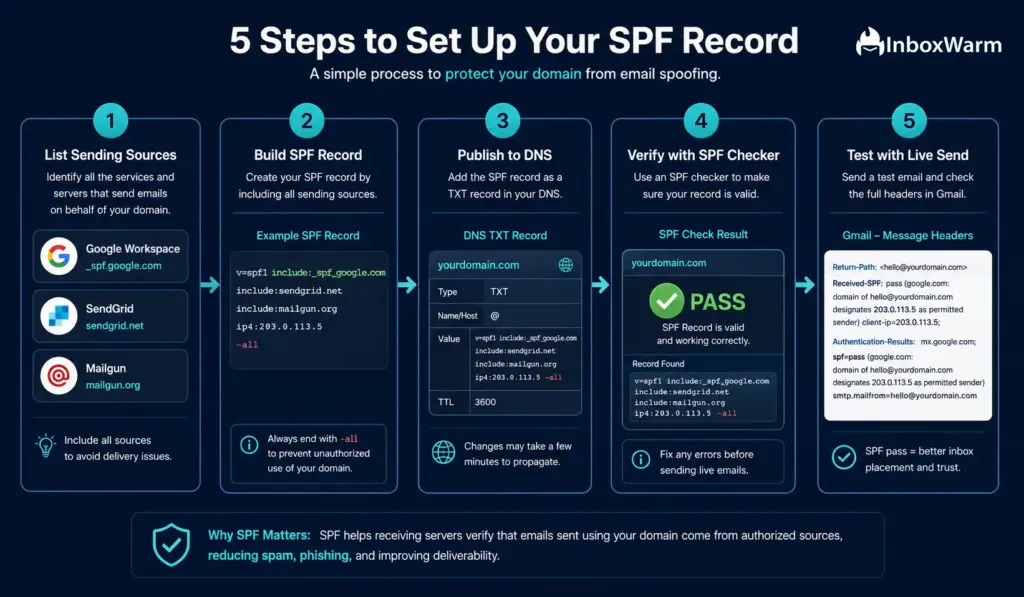
Step 1: Identify All Your Sending Sources
Before writing a single character of SPF syntax, list every service and server that sends email using your domain. Missing even one creates deliverability failures.
Common sending sources include:
- Your primary mail provider (Google Workspace, Microsoft 365, Zoho)
- Cold email tools (Instantly, Apollo, Lemlist, Smartlead)
- Marketing platforms (Mailchimp, HubSpot, ActiveCampaign, Klaviyo)
- Transactional email providers (SendGrid, Amazon SES, Mailgun, Postmark)
- Your own mail servers or VPS IPs
- CRMs that send on your behalf (Salesforce, HubSpot CRM)
Step 2: Build Your SPF Record
Combine all your sources into a single TXT record. Each ESP (email service provider) publishes its own SPF include string in their documentation.
For example:
If you are not confident building this manually, use InboxWarm’s free SPF Generator tool to construct a valid record based on your sending sources.
Step 3: Publish the Record in Your DNS
Log in to your domain registrar or DNS provider (Cloudflare, GoDaddy, Namecheap, Route53, etc.) and add a TXT record:
- Type: TXT
- Host/Name: @ (or your root domain)
- Value: your full SPF string starting with v=spf1
- TTL: 3600 (1 hour) is standard
Critical: only one SPF TXT record is allowed per domain. If you publish two, receiving servers will reject both and your SPF will fail.
Step 4: Verify Your SPF Record
After publishing, use a verification tool to confirm the record resolves correctly and that your sending IPs are covered. InboxWarm’s free SPF Checker lets you enter your domain and instantly see your published record, all included chain lookups, and whether you are within the 10-lookup limit.
Step 5: Test With a Live Email Send
Send a test email to a Gmail account and check the headers. In Gmail, click the three-dot menu on the email and select ‘Show original.’ Look for the Authentication-Results header. You should see:
What Are the Most Common SPF Mistakes?
SPF errors are remarkably common and have a direct impact on deliverability. After analyzing thousands of domain configurations, these are the mistakes that appear most frequently:
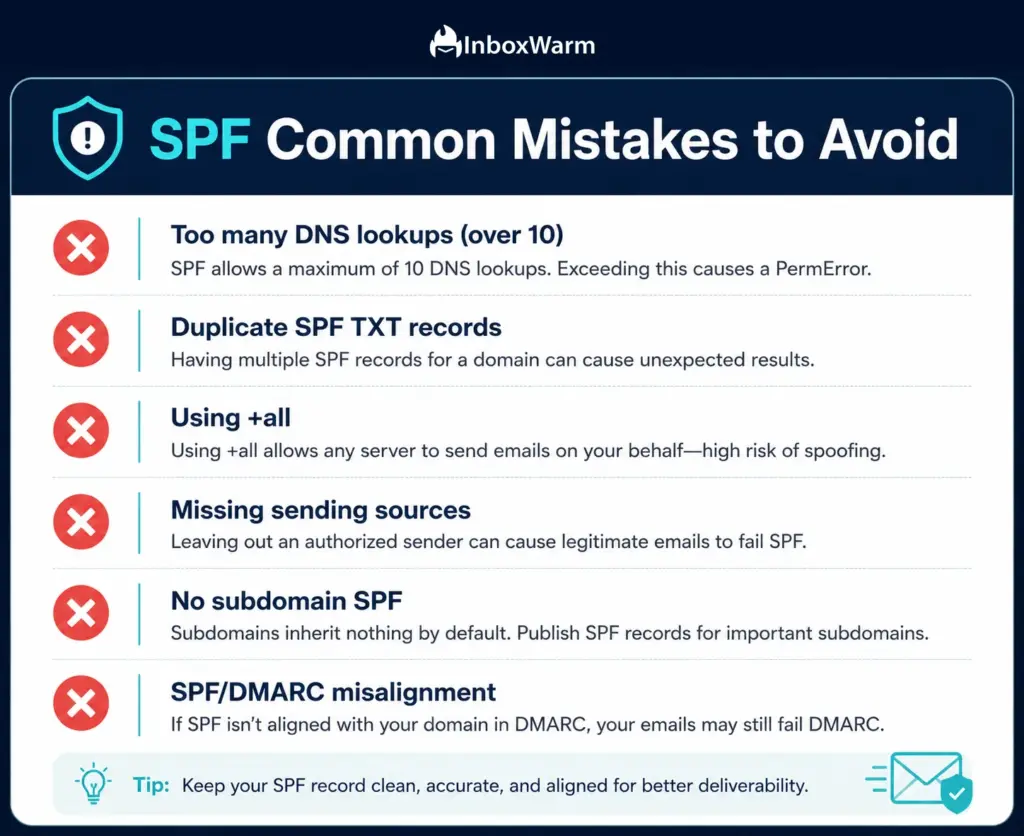
Mistake 1: Exceeding the 10 DNS Lookup Limit
This is the most widespread SPF problem. RFC 7208 limits SPF to 10 DNS lookups during evaluation. Every ‘include:’, ‘a’, and ‘mx’ mechanism counts toward this limit, including the recursive lookups those includes trigger. If your record exceeds 10 lookups, receivers return a PermError, which is treated as an SPF fail.
Example: include:_spf.google.com triggers 2 lookups. include:sendgrid.net triggers 3. Add Mailchimp, HubSpot, and Salesforce, and you have easily blown past 10 without noticing. Use InboxWarm’s SPF Checker to see your exact lookup count.
Mistake 2: Publishing Two SPF Records
Only one SPF TXT record is permitted per domain. If your DNS has two records starting with v=spf1, receiving servers will return a PermError and reject both. This frequently happens when someone adds a new ESP without removing the old record. Always merge additions into your single existing SPF record.
Mistake 3: Using +all
+all means ‘any IP address in the world is authorized to send email from this domain.’ This completely defeats the purpose of SPF, opens your domain to spoofing and phishing abuse, and will cause receiving servers to distrust your domain entirely. Never use +all under any circumstance.
Mistake 4: Not Including All Sending Sources
Sending a cold email campaign through Apollo or Instantly from a domain whose SPF record only lists Google Workspace will produce SPF fails for every email sent through those platforms. Every tool that sends on your behalf needs to be explicitly included in your SPF record.
Mistake 5: Forgetting Subdomain Coverage
SPF records do not automatically apply to subdomains. If you send from mail.yourdomain.com or outreach.yourdomain.com, each subdomain needs its own SPF record. Alternatively, add ‘include:yourdomain.com’ to subdomain records if the sending sources are the same.
Mistake 6: Not Aligning SPF With DMARC
SPF passing is not enough on its own if DMARC is configured incorrectly. DMARC requires the domain in the email’s ‘From’ header to align with the domain that passed SPF. If you are sending from hello@yourdomain.com but the envelope sender (Return-Path) is a different domain, SPF will pass, but DMARC alignment will fail.
How Does SPF Work Together With DKIM and DMARC?
SPF is one leg of a three-part email authentication framework. Understanding how they work together prevents configuration gaps that undermine the protection each one provides.
| Protocol | What It Validates | Where It Lives | What Happens If It Fails |
|---|---|---|---|
| SPF | Sending server IP authorization | DNS TXT record | Email may be marked as spam or rejected |
| DKIM | Email content integrity via cryptographic signature | DNS TXT record + email header | Receiving server cannot verify content was unaltered |
| DMARC | Alignment of SPF/DKIM with From header + policy enforcement | DNS TXT record | Domain owner loses control over unauthenticated mail handling |
SPF verifies where the email came from. DKIM verifies the email has not been tampered with in transit. DMARC ties them together, enforces alignment between the envelope and the From header, and gives domain owners the ability to instruct receiving servers to quarantine or reject unauthenticated emails.
Passing SPF alone is not sufficient for strong deliverability. A well-configured domain publishes SPF, DKIM, and DMARC together, then uses an email warm-up tool to build the sender reputation that makes all three work at scale.
SPF configured but still landing in spam? Your inbox needs warming.
How Do You Check If Your SPF Record Is Working?
After publishing your SPF record, use these methods to confirm it is resolving and authenticating correctly:
Method 1: Use InboxWarm’s Free SPF Checker
Enter your domain at inboxwarm.ai/tools/spf-checker/ to see your full SPF record, the complete include chain, how many DNS lookups your record uses, and whether any includes resolve to an error. This is the fastest way to spot configuration problems before they impact your campaigns.
Method 2: Check Email Headers
Send a test email to a Gmail address. Open the email, click the three-dot menu, and select ‘Show original.’ The Authentication-Results header will show whether SPF passed or failed and which mechanism matched.
Method 3: Use the dig or nslookup Command
From a terminal, run:
dig TXT yourdomain.com +short
This returns all TXT records for your domain. You should see exactly one record starting with v=spf1. If you see two, consolidate them immediately.
Method 4: Use Google’s MX Toolbox or mail-tester.com
These tools provide full authentication header analysis including SPF, DKIM, and DMARC results in a single report. Mail-tester.com gives you a score out of 10 based on your full authentication and content configuration.
Frequently Asked Questions
2. How Many SPF Records Can A Domain Have?
Exactly one. RFC 7208 explicitly prohibits more than one SPF TXT record per domain. If two records exist, receiving servers return a PermError, and both records are considered invalid. Always merge all your sending sources into a single record.
3. What Does SPF ~All Vs -All Mean?
~all (SoftFail) allows email from unlisted senders but flags it as suspicious. Most providers still deliver it. -all (HardFail) instructs receiving servers to reject email from unlisted senders entirely. Most security-conscious configurations use -all once DMARC is enforced at p=reject.
4. Does SPF Stop Email Spoofing On Its Own?
SPF limits spoofing of the envelope sender (Return-Path) domain but does not protect the visible From header. A spammer can pass SPF from their own domain while forging your From address. DMARC closes this gap by requiring alignment between SPF/DKIM and the From header.
5. What Is The SPF DNS Lookup Limit?
RFC 7208 limits SPF evaluation to 10 DNS lookups. Each include:, a, and mx mechanism counts toward this limit. Exceeding it causes receiving servers to return a PermError, which is treated as an SPF failure. Use an SPF checker to monitor your lookup count as you add sending services.
6. Can SPF Fail Even If The Email Is Legitimate?
Yes. SPF can fail for legitimate email when: your SPF record is missing a sending source (e.g., a new ESP you just added), the email is forwarded (the forwarding server's IP is not in your SPF), or your record exceeds 10 lookups. DKIM is more resilient to forwarding, which is one reason both standards are recommended.
7. Do You Need SPF If You Already Have DKIM?
Yes. DMARC alignment can pass via SPF or DKIM independently, but relying on only one creates a single point of failure. Google and Yahoo's 2024 sender requirements mandate SPF for bulk senders. Publishing both SPF and DKIM is the industry standard.
8. How Do you Fix The Spf Permerror: Too Many DNS Lookups?
Audit your current include chain using an SPF checker to count lookups. Remove unused includes for ESPs you no longer use. For services with complex SPF records, consider using their dedicated IP addresses with ip4: instead of include: to reduce lookup depth. Some SPF optimization services also flatten your record into direct IP references.
Bottom Line
An SPF record is the first line of defense in your email authentication stack. It tells the world which servers you have authorized to send email on behalf of your domain, and it gives receiving servers a fast, reliable way to identify spoofed or unauthorized email.
Getting it right is not complicated, but the details matter: one duplicate record, one missing include, or one too many DNS lookups and your carefully crafted cold emails start failing authentication before they reach a single inbox.
The good news is that SPF configuration is a one-time task that pays deliverability dividends indefinitely. Set it up correctly, verify it with a dedicated checker, and pair it with DKIM and DMARC for complete authentication coverage. Then let an email warm-up tool do the heavy lifting of building the sender reputation that turns authentication compliance into actual inbox placement.
Authentication tells inbox providers who you are. Warm-up tells them to trust you. Both are required for cold email to work at scale in 2025 and beyond.