

TL;DR
Gmail’s SMTP server is smtp.gmail.com. Use port 587 with STARTTLS (or 465 with SSL/TLS), authenticate with your full email address and a 16-character app password, and you are ready to send. The catch for cold email: personal Gmail caps at 500 messages a day and Workspace at 2,000, which makes Gmail SMTP a poor fit for outreach at scale.
- Server: smtp.gmail.com, port 587 (TLS) or 465 (SSL), authentication required on every port.
- App password required when 2-Step Verification is on. Your regular account password no longer works over SMTP.
- Daily limits: 500 (personal Gmail), 2,000 (Workspace), up to 10,000 recipients via smtp-relay.gmail.com.
- For cold outreach, pair dedicated sending infrastructure with email warm-up to protect inbox placement.
You found this page because you are wiring Gmail into a cold email tool, a CRM, or a script, and either it is not sending or you want the configuration right the first time. The settings themselves take about two minutes. The harder question, the one that decides whether your campaign lands in the inbox or the spam folder, is whether Gmail SMTP is the right pipe for what you are trying to do.
Get the ports and authentication wrong, and you stare at a “535 Username and Password not accepted” error with no idea why. Get them right but ignore the sending limits, and you burn your domain reputation, trip Gmail’s throttling, and tank your deliverability before a single prospect replies. Cold email punishes both kinds of mistake, and the second one is far more expensive because the damage follows your domain around.
In this guide, you’ll get the exact Gmail SMTP settings, including server details, ports, encryption methods, app passwords, authentication setup, daily sending limits, and client configurations for Outlook and WordPress.
You’ll also learn how to fix common SMTP errors like 535 and 534 and get a clear answer to the bigger question: should you use Gmail SMTP for cold email at all?
Table of Contents
What Are the Correct Gmail SMTP Settings?
Gmail’s SMTP server address is smtp.gmail.com. Connect on port 587 with STARTTLS or port 465 with implicit SSL/TLS. Both ports require authentication, and your username is always your full email address. Port 25 is not available on the standard server. It works only through Gmail’s separate relay service for Workspace accounts.
SMTP (Simple Mail Transfer Protocol) is the standard that moves outgoing mail from your client or app to the recipient’s mail server. When you set up Gmail SMTP, you are telling your software how to hand messages to Google’s outgoing servers, which then relay them on to your recipients.
Here is the canonical configuration. Paste it into whatever app, plugin, or script you are setting up:
| Setting | Value |
|---|---|
| SMTP server (host) | smtp.gmail.com |
| Port (TLS) | 587 |
| Port (SSL) | 465 |
| Encryption | STARTTLS on 587, or SSL/TLS on 465 |
| Username | Your full Gmail or Workspace address |
| Password | 16-character app password (with 2FA) or OAuth 2.0 token |
| Authentication | Required on every port |
| Daily send limit | 500 (personal Gmail) / 2,000 (Workspace) |
| Attachment limit | 25 MB per message |
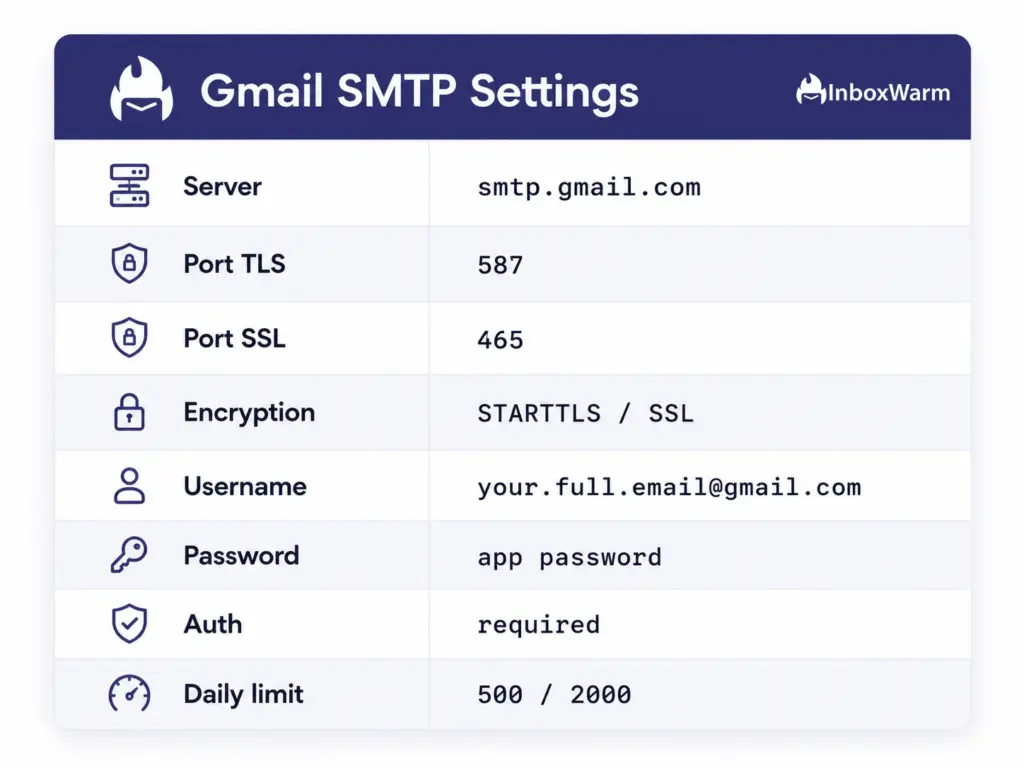
These settings are stable. Google’s developer documentation confirms that smtp.gmail.com supports TLS and that clients beginning in plain text should use port 465 for SSL or port 587 for TLS before issuing STARTTLS. Workspace administrators get one extra option, smtp-relay.gmail.com, for higher-volume sending, which we cover in the limits section below. If you plan to run volume through a raw SMTP connection, the same warm-up principles in our SMTP warm-up guidance apply.
Gmail SMTP Port 587 vs. 465: Which Should You Use?
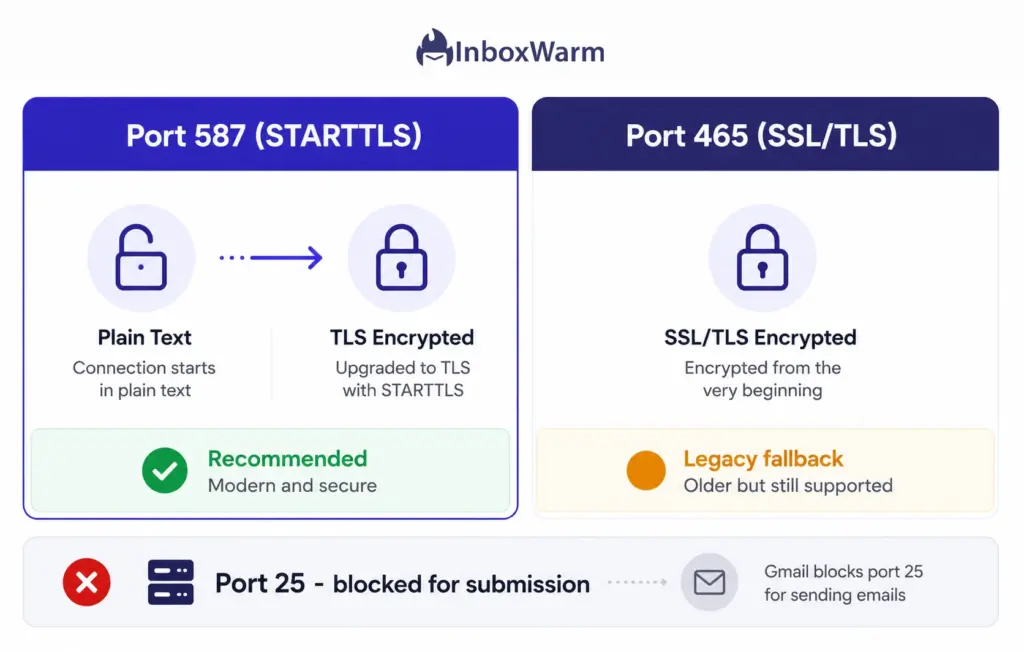
Use port 587. It is the modern submission standard: the connection opens in plain text and upgrades to an encrypted channel with the STARTTLS command. Port 465 uses implicit SSL/TLS, meaning it is encrypted from the first byte, and it still works, but it exists mainly for older clients. Reach for 465 only when your software cannot negotiate STARTTLS.
- Port 587 (STARTTLS): the modern standard Google recommends, with the widest client compatibility. Use this by default.
- Port 465 (SSL/TLS): implicit encryption, kept around as a legacy fallback. Use it only when a client or device requires it.
- Port 25: server-to-server only, blocked by most ISPs for client submission, and not available on smtp.gmail.com at all.
One practical tip that saves hours of debugging. If port 587 connections fail on a given network, such as hotel Wi-Fi or a locked-down corporate firewall, try port 465 before assuming your credentials are broken. A large share of “Gmail SMTP not sending emails” reports turn out to be blocked ports, not bad passwords. Testing on a mobile hotspot quickly tells you whether the network is the problem.
How Do You Set Up Gmail SMTP Authentication and App Passwords?
With 2-step verification enabled, and it should be, Gmail no longer accepts your regular account password over SMTP. You authenticate with a 16-character app password or with OAuth 2.0. Less Secure App Access, the old toggle people used to flip, was retired in 2022, so an app password is the simplest path for most tools and scripts.
A Gmail app password is a 16-character code you generate in your Google Account that lets one app or device sign in without completing the second verification step. It only exists on accounts that have 2-Step Verification turned on, which is why the option is hidden until you enable 2FA first.
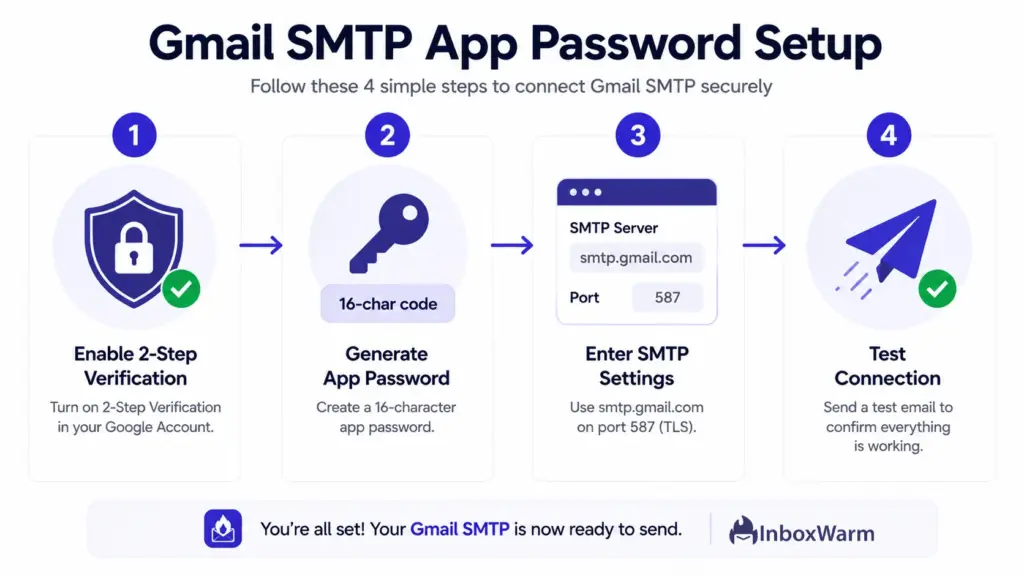
Step 1: Turn On 2-Step Verification
Open your Google Account, go to Security, and enable 2-Step Verification. App passwords do not appear as an option until this is on, so this step is non-negotiable.
Step 2: Generate an App Password
Back in Security, open App Passwords, give the app a recognizable name such as “Cold Email Tool,” and Google returns a 16-character code. Copy it immediately, because you cannot view it again after closing the dialog.
Step 3: Enter It in Your Client or Tool
Use your full email address as the username and the app password as the password, with no spaces. Set the server to smtp.gmail.com and the port to 587 with TLS. Save the configuration.
Step 4: Send a Test Message
Send one message to a separate inbox you control. A successful send confirms your authentication is working. A 535 or 534 error means the credential or your 2FA setup needs another look, which we troubleshoot further down.
One important distinction: authenticating to the SMTP server is not the same as authenticating your domain. Even with a perfect app password, your messages still need domain-level email authentication to be trusted by receivers. Publish a valid SPF record, sign your mail with a DKIM record, and protect the domain with a DMARC record. Without those, even correctly authenticated SMTP sends can land in spam.
What Are Gmail’s SMTP Daily Sending Limits?
Personal Gmail accounts can send roughly 500 messages per rolling 24 hours through SMTP. Google Workspace accounts get 2,000 per day on smtp.gmail.com. Workspace admins can also use smtp-relay.gmail.com, which scales to about 10,000 recipients per user per day with IP-based authentication. Hit any cap and Gmail stops accepting mail until the window resets.
| Account type / service | Daily sending limit |
|---|---|
| Personal Gmail (smtp.gmail.com) | About 500 messages per day |
| Google Workspace (smtp.gmail.com) | 2,000 messages per day |
| Workspace SMTP relay (smtp-relay.gmail.com) | Up to 10,000 recipients per user per day |
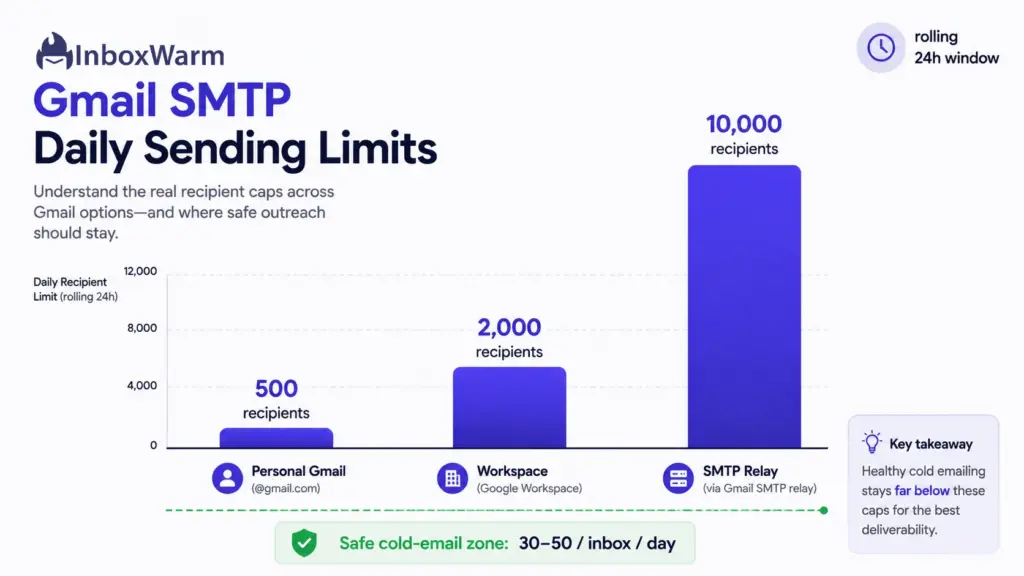
A few details that trip people up:
- Limits run on a rolling 24-hour window, not a calendar-day reset. Send 500 at 2:00 PM, and you are locked out until roughly 2:00 PM the next day.
- When you exceed the cap, messages may queue as drafts, throw a “you have reached a limit for sending mail” error, or appear in Sent without actually delivering.
- Gmail also caps concurrent connections (about two per account) and attachments at 25 MB per message.
Here is the part that matters for outreach. These are submission caps, not deliverability guarantees. Sending right up to the limit from a cold domain is one of the fastest ways to get filtered. Gmail also applies email throttling, slowing or deferring your mail when the sending pattern looks abnormal for the account.
A healthy cold email program keeps per-inbox volume low, often 30 to 50 sends a day per mailbox, and spreads it across multiple inboxes. That is the opposite of maxing out a single Gmail account, and it is why serious senders warm up a new Gmail inbox before pushing any volume through it.
How Do You Configure Gmail SMTP in Outlook and WordPress?
The core settings are identical everywhere: smtp.gmail.com, port 587, TLS, your full address, and an app password. Only the field names change between platforms. Outlook needs you to set the outgoing server and force TLS manually. WordPress should use an SMTP plugin, ideally connected through the Gmail API over OAuth rather than raw credentials stored in the database.
Gmail SMTP Settings for Outlook
- Add the account and choose manual setup or IMAP configuration.
- Outgoing (SMTP) server: smtp.gmail.com, port 587, encryption method STARTTLS / TLS.
- Username: your full email address. Password: the 16-character app password.
- Outlook tends to hold onto old credentials. If a send fails after you change a password, delete the account and re-add it rather than editing it in place.
Gmail SMTP Settings for WordPress
- Install an SMTP plugin such as WP Mail SMTP. WordPress’s default PHP mail() function fails silently on many hosts, which is why scheduled emails and form notifications quietly disappear.
- Configure host smtp.gmail.com, port 587, TLS, your full address, and the app password.
- Prefer the Gmail API (OAuth) connection where the plugin supports it. It is more secure because it does not store a static password in your database, and it keeps working even when your host blocks SMTP ports.
How Do You Fix Gmail SMTP Authentication Failed Errors?
Most Gmail SMTP authentication failures are credential problems, not server problems. Error 535-5.7.8 means your username and password were rejected. Error 534-5.7.9 means Gmail wants an application-specific password because 2-step verification is on. The fix for both usually starts in the same place: generate a fresh app password and paste it in cleanly.
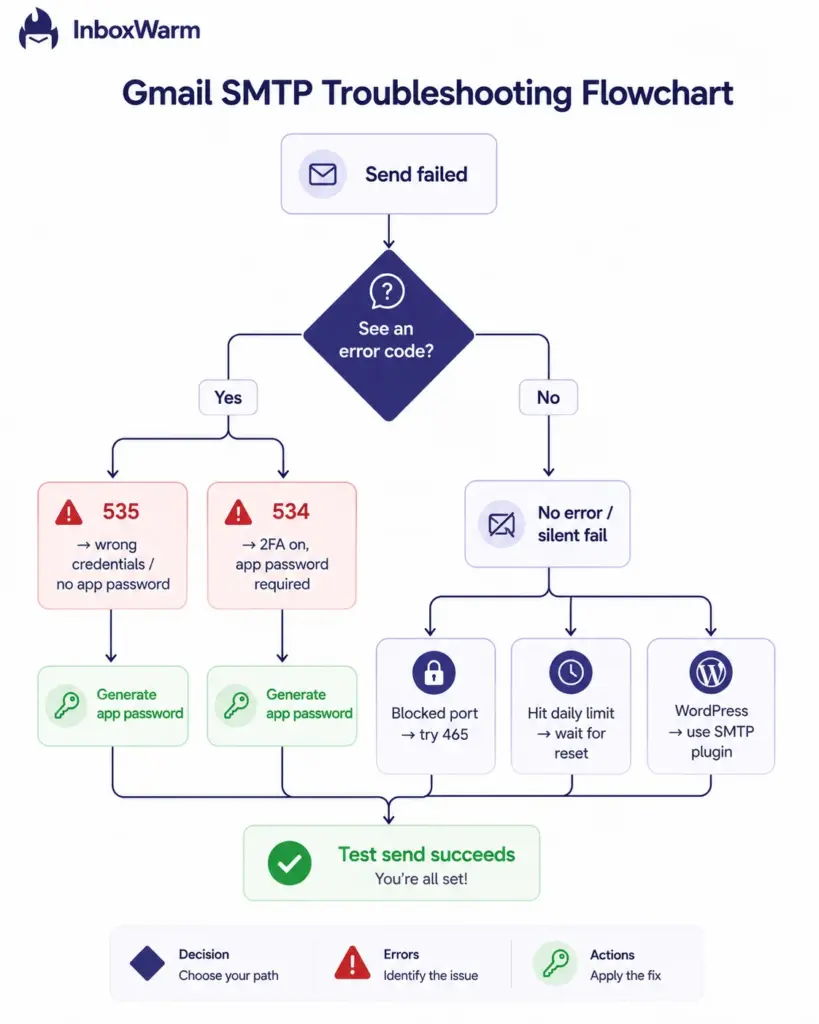
1. Gmail SMTP Error 535 (Username and Password Not Accepted)
The full message is usually “535-5.7.8 Username and Password not accepted.” It means Google rejected the credentials your client sent. Common causes:
- You used your regular account password instead of an app password.
- The app password was pasted with spaces or a typo.
- 2-Step Verification is off, so app passwords are unavailable and Google blocks the sign-in.
- Wrong encryption for the port (SSL where TLS is expected, or the reverse).
- Google flagged the connecting IP address as suspicious and refused the session.
To fix it: confirm the username is your complete email address, regenerate the app password and paste it without spaces, verify your port and encryption pairing (587 with TLS or 465 with SSL), and test from a different network to rule out an IP block.
2. Gmail SMTP Error 534 (Application-Specific Password Required)
Error 534-5.7.9 reads “Application-specific password required.” It appears when 2-Step Verification is enabled but your client is still trying to use the normal account password. Gmail is explicitly telling you to switch to an app password or OAuth.
To fix it: enable 2-Step Verification if it is off, generate an app password, and replace the regular password in your tool with the 16-character code. This single change resolves the large majority of 534 errors.
Gmail SMTP Not Sending Emails With No Clear Error
- Blocked ports: if 587 fails, try 465, or test on a mobile hotspot to confirm the network is the issue.
- Daily limit reached: messages may queue, fail with a “limit reached” notice, or sit in Sent without delivering until the 24-hour window resets.
- Silent WordPress failures: switch from PHP mail() to an SMTP plugin so failures surface instead of disappearing.
Should You Use Gmail SMTP for Cold Email at All?
For testing, transactional mail, and very low-volume sending, Gmail SMTP is fine. For real cold outreach, it is the wrong tool. The daily caps are too low; every send loads reputation onto a domain you cannot afford to burn, and Gmail’s filters are tuned to catch exactly the pattern cold campaigns create.
Three problems stack on top of each other:
- Volume: 500 or 2,000 sends a day across a single mailbox does not support a real campaign, which needs multiple inboxes and domains in rotation to look like normal business activity.
- Reputation Surface: Cold sending from your primary domain puts billing, support, and executive email on the same sender reputation that a handful of spam complaints can sink.
- Filtering: Gmail evaluates reputation per domain and per sender, so a cold pattern from a cold inbox gets filtered fast, often before you notice.
What to do instead is well established. Send from dedicated domains and inboxes built for outreach, never your primary business domain. Authenticate properly with SPF, DKIM, and DMARC so receiving servers can verify you.
And warm up every inbox before you send volume. Email warm-up is the process of gradually increasing sending from a new inbox while generating positive engagement, such as opens, replies, and messages being moved out of spam, so mailbox providers learn to trust the sender.
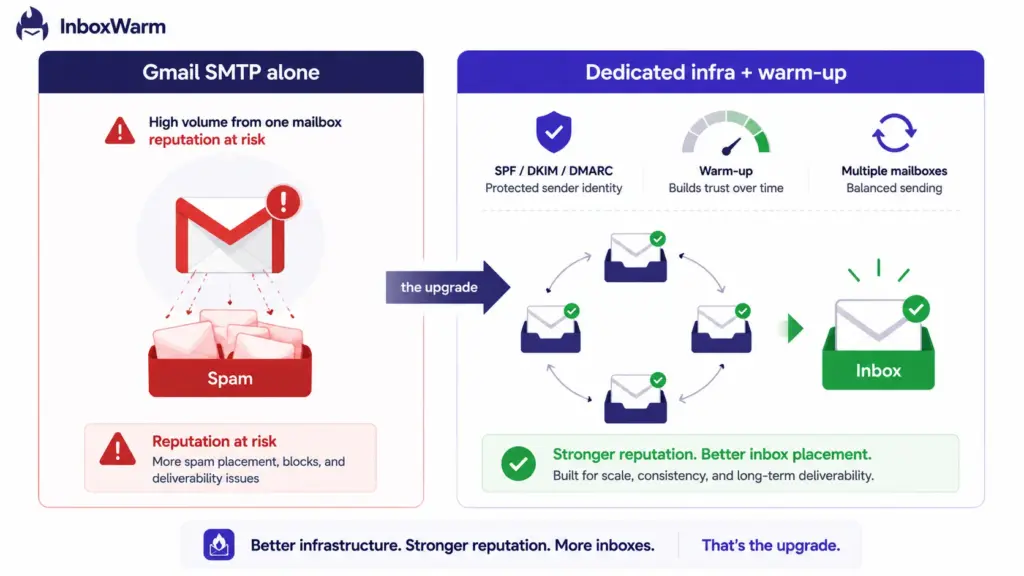
This is where a dedicated tool earns its place. InboxWarm.ai is an AI-powered email warm-up tool that improves inbox placement and sender reputation. It runs automated, human-like exchanges across a network of real inboxes, so a new Gmail, Workspace, or custom SMTP sender builds a positive reputation before the first prospect ever sees a message.
You can read more on the email warm-up hub, and there are provider-specific guides for Gmail warm-up and SMTP warm-up depending on how you send.
Conclusion
The Gmail SMTP settings themselves are not complicated: smtp.gmail.com, port 587 with TLS, your full address, and a 16-character app password. Get that pairing right and most authentication failures disappear. The 535 and 534 codes that stop people are almost always a missing app password or 2-step verification that was never switched on, not a broken server.
The bigger decision is what you run through that pipe. Gmail SMTP was built for a person sending personal and small-business mail, and it does that job well. It was never built for cold email at scale, and its sending limits, per-domain reputation model, and aggressive filtering make that obvious the moment you push volume. Treating Gmail SMTP as cold email infrastructure is the quiet mistake that costs senders their domain.
If cold outreach is the goal, separate your sending from your primary domain, authenticate with SPF, DKIM, and DMARC, and warm up every inbox before you scale. Do that, and the Gmail SMTP settings become a footnote instead of the thing standing between you and the inbox.
Frequently Asked Questions
Do I need an app password for Gmail SMTP?
Yes, if 2-Step Verification is enabled on your account, which it should be. Google retired Less Secure App Access in 2022, so your regular password no longer works over SMTP. Generate a 16-character app password in your Google Account security settings and use that instead.
What is the Gmail SMTP daily sending limit?
Personal Gmail accounts can send about 500 messages per rolling 24-hour period through SMTP. Google Workspace accounts get 2,000 per day on smtp.gmail.com, and Workspace admins can use smtp-relay.gmail.com for up to 10,000 recipients per user per day. These are submission caps, not deliverability guarantees.
How do I fix Gmail SMTP error 535?
Error 535-5.7.8 means your username and password were not accepted. Generate a fresh app password, make sure you pasted it without spaces, and confirm your username is the full email address. Also check that your port and encryption match, and try a different network in case Google flagged the IP.
What does Gmail SMTP error 534 mean?
Error 534-5.7.9 means an application-specific password is required. It appears when 2-Step Verification is on but your client is still using the regular account password. Turn on 2FA if it is off, generate an app password, and replace the old password in your tool with the 16-character code.
Why is Gmail SMTP not sending emails even with the right settings?
The most common causes are blocked ports, a hit daily limit, or silent failures in WordPress. If port 587 fails, try 465 or test on a different network. If you have maxed your daily cap, messages may queue or appear in Sent without delivering until the 24-hour window resets.
Can I use Gmail SMTP for cold email?
You can, but you should not for real campaigns. The 500 to 2,000 daily cap is too low for serious outreach, and sending cold mail from your primary domain risks the reputation your important email depends on. Dedicated sending domains, proper authentication, and email warm-up are the standard setup for cold outreach.
Is port 587 or 465 better for Gmail SMTP?
Port 587 is the better default. It uses STARTTLS, the modern submission standard Google recommends, and it has the widest client compatibility. Port 465 uses implicit SSL and still works, but it is mainly for older clients that cannot negotiate STARTTLS. Use 465 only when 587 is unavailable or blocked.
STOP LOSING COLD EMAIL TO THE SPAM FOLDER
Configuring Gmail SMTP is the easy part. Keeping cold email out of the spam folder is the hard part.
InboxWarm.ai is an AI-powered email warm-up tool that improves inbox placement and sender reputation, building trust on every Gmail, Workspace, or SMTP inbox before you send a single campaign.